How to connect your device with TouchCopy via Wi-Fi
Enable Wi-Fi on both your computer and your iOS device (iPhone, iPad or iPod Touch) and ensure that both are connected to the same network.
Unlock your device and ensure that it's showing the home screen.
Enable iOS Wi-Fi connectivity on your computer:
Launch iTunes, Apple Devices or Finder on your computer.
Connect your iOS device via USB cable.
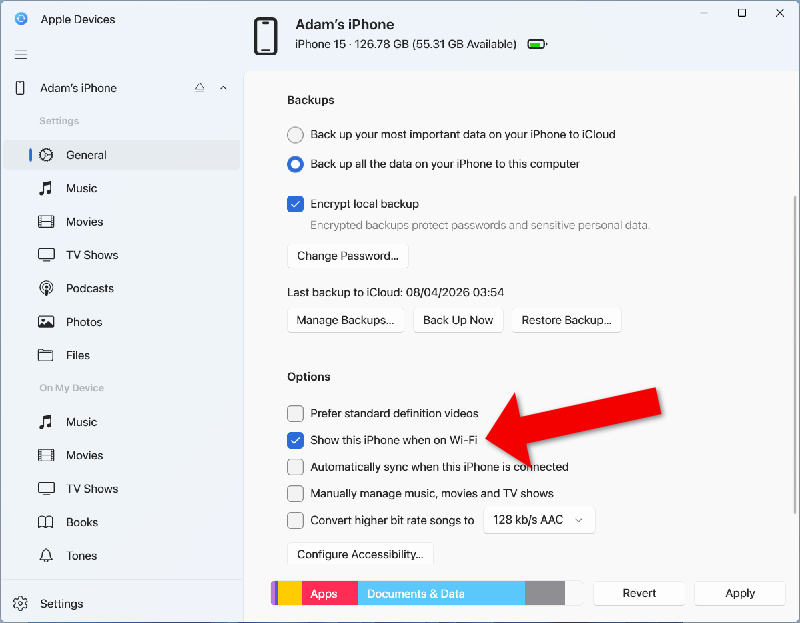
Select the device to view its General settings.
Tick "Show this iPhone when on Wi-Fi" and click "Apply".
Close the iTunes/Apple Devices/Finder window and disconnect your USB cable.
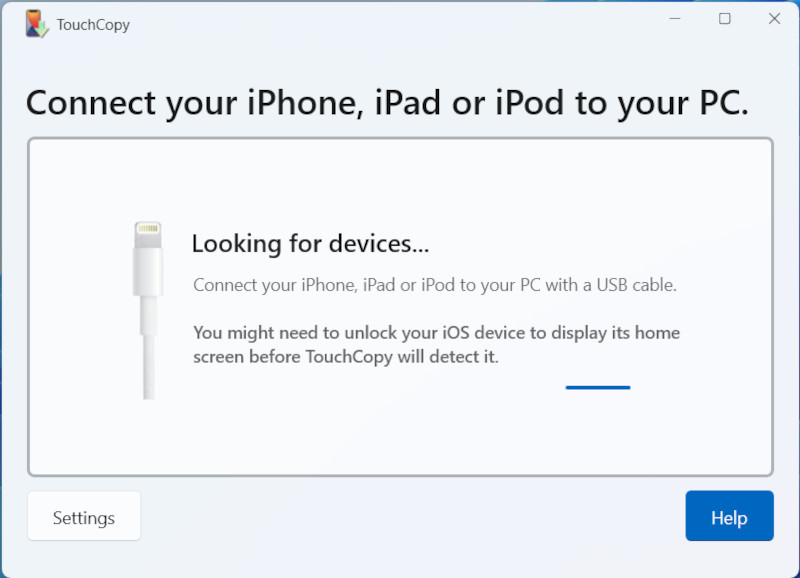
Launch TouchCopy on your PC or Mac.
If prompted on your device, tap "Trust" and enter your passcode.
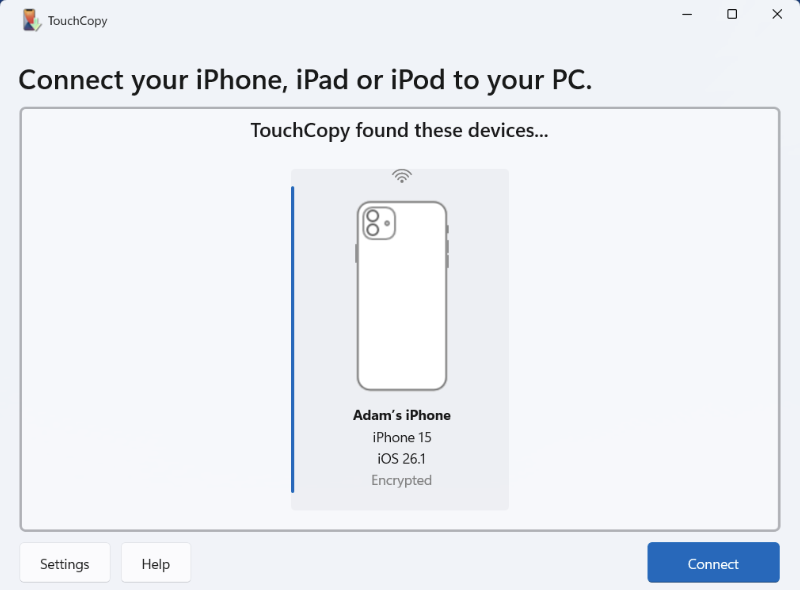
When your device appears in TouchCopy, select it and click "Connect".
You can now access the contents of your iPhone, iPad or iPod in TouchCopy. Simply choose a section like Messages, Photos or Call Logs to get started!
Troubleshooting a Wi-Fi connection
If TouchCopy is not finding your device via Wi-Fi, check the tips below to ensure a successful connection.
Update TouchCopy
Check that you're running the latest version of TouchCopy on your PC or Mac. This ensures that TouchCopy supports Wi-Fi connections, and applies any improvements and fixes around connection.
Wi-Fi connectivity is enabled by default in TouchCopy. On Windows, you can toggle it in TouchCopy's Settings > General.
Check your Wi-Fi network
It's imperative that both your computer and mobile device are on the same Wi-Fi network to make the connection. So, if you have multiple networks available to you, ensure that both your devices are using the same one.
Here's how to change your Wi-Fi network on your devices:
Computer: Click the Wi-Fi icon on the taskbar at the bottom of the screen on Windows, or at the top of the screen on Mac. Select your desired network and enter the password if required.
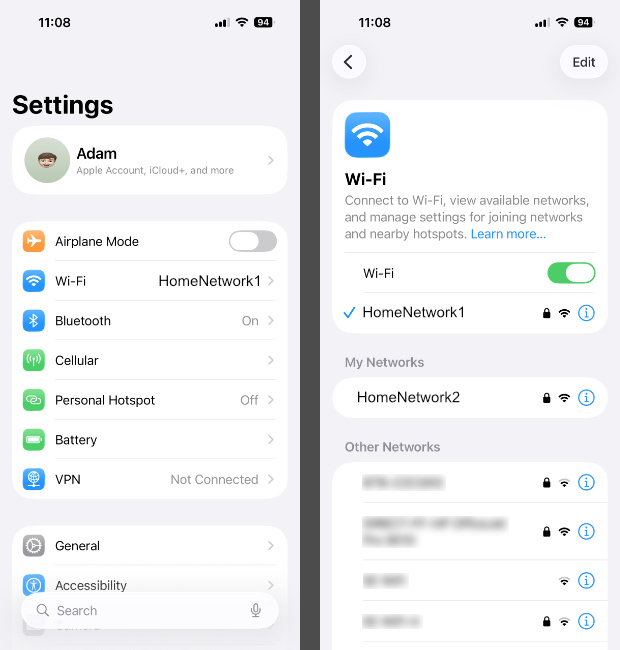
iPhone: Open Settings, tap Wi-Fi, and you'll see a list of available networks. Tap the one you want to join, enter the password if required, and the iPhone will switch to it.
Check your battery
It's recommended that your iPhone has at least 50% battery charge for Wi-Fi connections. If your device is below this, charge it for a while and try again later. Did you know that you can check the battery health of your devices in TouchCopy?
Disable a VPN
The use of a VPN can interfere with the Wi-Fi communication between your devices.
If you use them, please temporarily turn off VPNs on both your computer and iOS device while using TouchCopy.
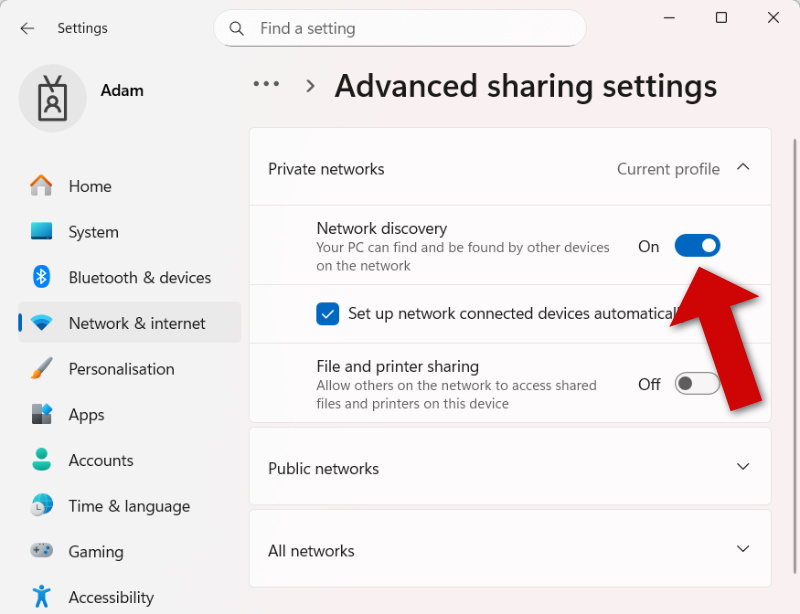
Enable Network Discovery on your PC (Windows only)
Your computer may be set to be undiscoverable on your network. This means that it also cannot find other devices on the network.
To enable Network Discovery on your Windows PC:
Open Settings and go to "Network and Internet".
Click "Advanced network settings" and then "Advanced sharing settings".
Turn On "Network Discovery" for your current profile.
Use a USB cable
If you're still unable to connect your device after following these steps above, try connecting via USB instead.
To do this, simply hook up your device to your PC or Mac using your USB cable. Once TouchCopy detects your device, select it and click "Connect".
We use cookies to provide you the best experience on our website. To find out more, read our cookie policy. You may decline non-essential cookies if you prefer.
We use cookies to track usage and optimize your experience.