How to Transfer Voice Memos from iPhone to Computer
The iPhone’s Voice Memos app is a simple but powerful tool for recording lectures, reminders, interviews, and meetings.
Over time, these recordings can quickly build up and become difficult to manage on your device. That’s why it’s a good idea to transfer your voice memos to your computer, where you can organize and store them more easily.
One of the easiest ways to do this is with TouchCopy, which lets you save your voice memos to your computer and organize them into folders for easy access.
Watch our video on how to save iPhone Voice Memos to your computer, or follow the step-by-step guide below.
How to Save iPhone Voice Memos to Your Computer
- Download and install TouchCopy.
- Run TouchCopy and connect your iPhone, iPod, or iPad.
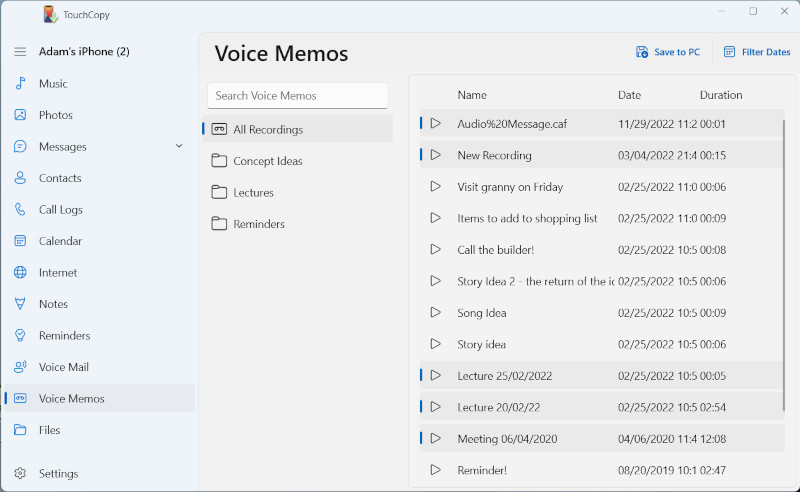
- Choose Voice Memos from the feature list.
- Select the voice recordings you wish to copy.
- Click "Save to PC" or "Copy to Mac" and choose where to save to.
What TouchCopy Can Do with Your Voice Memos
This feature is available for iPhones, iPads and iPods that support voice memo recording.
If your device supports the recording of Voice Memos (or Voice Notes), TouchCopy can play and copy those recordings from your device. To access them, click the "Voice Memos" feature from the list in TouchCopy.
If you have organized your recordings into folders on your device, clicking one of these folders in TouchCopy will show all the memos within that folder.
Filter Voice Memos: Use “Filter Dates” (PC) or “Date Range” (Mac) to show recordings created within a specific time period.
Search Voice Memos: Enter some text in the search bar to search for a particular voice memo or folder on your device.
Play Voice Memos: Select a recording and click the play button to listen to it on your computer.
Copy Voice Memos to your computer: Select the recordings you want to copy, then click "Save to PC" or "Copy to Mac" button in the TouchCopy control bar. TouchCopy will copy your voice memos to a location chosen by you on your computer - you can take this opportunity to create a new folder for your selected voice memos.
Publisher:
Wide Angle Software