How to Check Your iPhone or iPad's Battery Health with TouchCopy
A healthy battery is essential for getting the best performance and longest lifespan from your iPhone or iPad. However, it's natural that your battery will degrade through usage over time.
In this guide, we'll show you how to check your device's battery health with TouchCopy, understand what the key details mean, and learn practical tips to make your battery last longer.
You can even use TouchCopy to check the battery health of older iPads for which you can't find battery details on the device itself.
Quick jump to:
Before you get started, download and install TouchCopy free on your computer.


How to Check iPhone/iPad Battery Health
- Launch TouchCopy on your computer.
- Connect your iPhone or iPad using a USB cable or Wi-Fi.
Your connected device's current charge is shown in the status bar at the bottom of TouchCopy.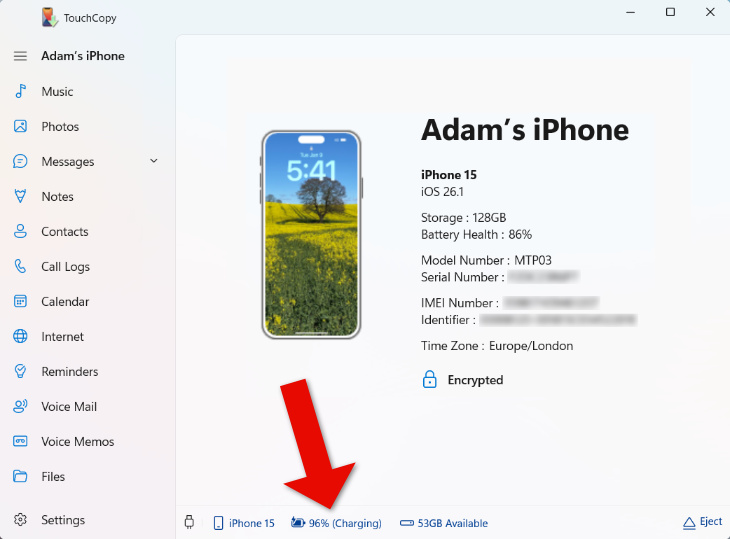
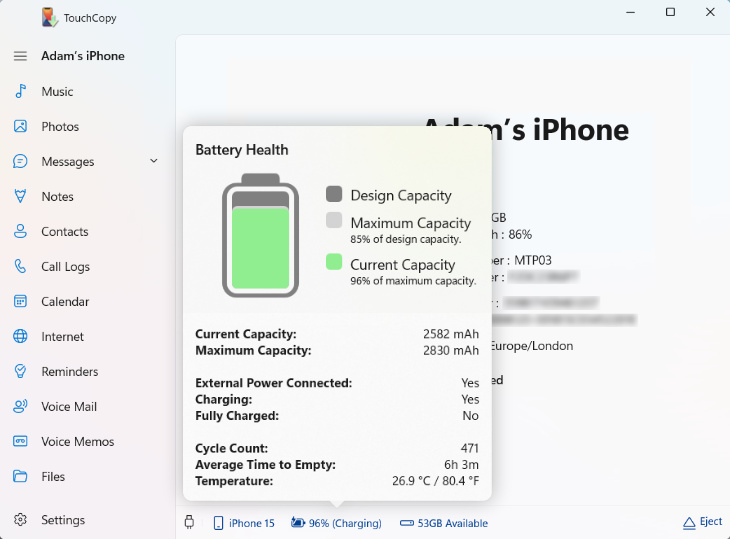
- Click the battery icon to access Battery Health details.
Understanding the Battery Health Details in TouchCopy
The following information corresponds to the battery metrics displayed in TouchCopy, as shown in the screenshot above.
Battery Capacity
- Design Capacity:
The amount of power your battery was intended to hold when it was brand new. - Maximum Capacity:
The power your battery can hold now, compared to when it was new. - Current Capacity:
The charge your battery has right now, shown as a percentage of its current maximum capacity (not the design capacity). This is the same value you see at the top of your iPhone or iPad screen.
Note: Keep an eye on the Maximum Capacity figure - it's the best way to track how your battery is ageing. A small drop isn't a cause for concern, but if the number falls noticeably, you may start to see reduced battery life.
Charging Details
These indicators in TouchCopy show whether your device is connected to power, actively charging, or has already reached a full charge.
Note: Your device may be connected to power but not charging, even if the battery is not fully charged. This is normal if you use features such as "Charge Limiting" or "Optimized Battery Charging", which intentionally pause charging to help protect your battery's long-term health.
You can access these features on your iPhone or iPad by going to Settings > Battery > Charging.
Cycle Count
TouchCopy will show you the total number of full battery charge cycles used. One cycle equals 100% of battery usage, even if it happens across several partial charges. For example, if you use 60% of your battery, charge it to full, and then use another 40%, this is one complete cycle (60+40=100).
A higher cycle count means the battery has experienced more wear and will naturally hold less charge over time.
Average Time to Empty
This is an estimate, shown in TouchCopy, of how long your device's battery will last before reaching 0%, based on your usual usage and power consumption.
Battery Temperature
TouchCopy displays the current temperature of your device's battery. Keeping your battery within a normal temperature range helps maintain its health and performance. If your device is too hot or cold, it may charge more slowly or not charge at all until it reaches a normal temperature.
The recommended temperature range for iPhone and iPad usage is 0º and 35ºC (32º to 95ºF).
- Using an iPhone or iPad in very hot conditions can cause permanent damage to your battery's health, reducing its maximum capacity faster than normal.
- Using an iPhone or iPad in very cold conditions can temporarily reduce its maximum capacity. When the device returns to a normal temperature, the maximum capacity will return to its previous state.
Tips to Extend Your iPhone or iPad Battery Life
Update Your Device
iOS and iPadOS updates often include power efficiency improvements and battery-related optimizations.
TouchCopy will let you know when your connected device has an update available.
You can update your device by going to Settings > General > Software Update.
Avoid Unnecessary Battery Usage
Lithium-ion batteries (used in iPhones and iPads) lose capacity with each charge cycle. So, it stands to reason that the less you use your battery, the fewer cycles you'll rack up, and therefore the longer your battery will last.
Save battery power where you can by:
- Closing apps when you have finished using them.
- Limiting background app activity. In Settings > General > Background App Refresh, you can turn off apps to prevent them refreshing their content even when you're not using them.
- Lowering screen brightness or using the "Auto Brightness" setting.
- Disabling wireless features (Wi-Fi, Cellular data, Bluetooth, AirDrop, Location) when not in use.
Enabling Low Power Mode will reduce screen brightness, disable many power-hungry features and more with a single tap. Your iPhone or iPad will ask if you want to turn on Low Power Mode when your battery gets low.
Regularly Monitor Battery Health
Using TouchCopy to regularly check cycle count, capacity, temperature etc will help you spot when the battery becomes significantly degraded or damaged. This information can help you decide if and when to consider taking the device for a service, where an Apple Authorized Service Provider can replace the battery.
Takeaways
Monitoring your iPhone or iPad's battery health is one of the best ways to maintain performance and improve its longevity. With TouchCopy, you can quickly check essential details like capacity, cycle count, temperature, and charging behavior, giving you a clear picture of your battery's condition at any point in time.
By following the tips in this guide, you can reduce unnecessary wear, charge less often, and keep your device running smoothly for longer — saving you both time and money in the long run.
FAQs
Can I check battery health on my iPhone or iPad itself?
Yes — you can check battery health directly on your device in
Settings > Battery > Battery Health.
Older iPad models (pre-2024) do not support showing battery health in Settings.
How do I check the battery health on my older iPad?
Many older iPads don't show battery health details (such as maximum capacity or cycle count) directly in iPad Settings. However, you can still check your iPad's battery health using TouchCopy on your computer — connect your iPad, then click the battery icon in TouchCopy to view battery health information.
What battery health percentage is considered “good”?
iPhone batteries are considered to be in good condition until they reach around 80% capacity. iPhone 14 and older models typically reach this after about 500 charge cycles, while iPhone 15 and later models are designed to last for around 1,000 charge cycles before reaching the same level.
A battery health level of around 80% is usually considered the point where battery performance may noticeably decline.