How to export iPhone messages with forensic details
This article shows how to export your iPhone messages, with additional forensic details, including Bates numbering, message identifiers, device information and sender details. These features can help you organise and reference exported conversations for legal proceedings, investigations or record-keeping.
Note: Some features listed in this article are not yet implemented on the Mac version of TouchCopy.
Key features that TouchCopy provides for forensic documents
Numeric message identifiers: Assign a number to each message in the conversation for easy reference.
Bates Numbering: Add sequential Bates numbering to exported PDF pages to help locate and organize documents.
Bates Custom Prefix: Add a personalized prefix to Bates numbering, such as case or document references.
Forensic Footer: Include device information, export dates, and a unique device identifier.
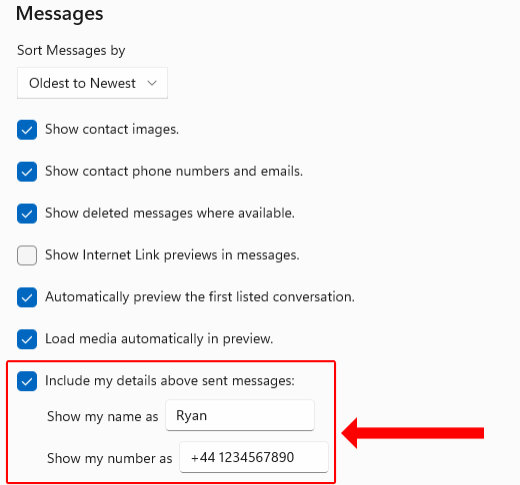
Sender Details: Display your own name and/or phone number above sent messages.
PDF Page Numbering: Include simple page numbering when Bates numbering is not required.
How to export iPhone messages with forensic detail
1: Download and install TouchCopy on your computer, then launch the software.
2: Click on Settings in TouchCopy, then select Messages.
3: Under Forensic Options, enable your preferred settings. See the forensic settings section below for more information.
4: Connect your iPhone and open Messages on the left sidebar to view your messages.
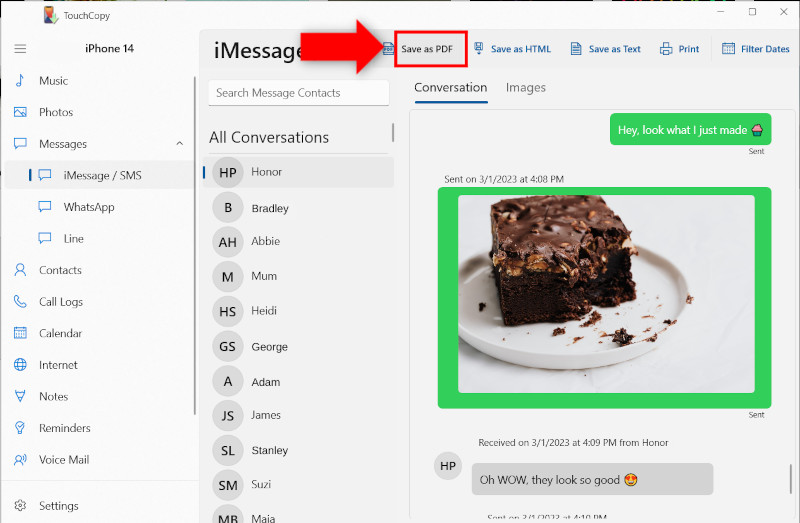
5: Above your selected conversation, select Save as PDF, or choose another desired export format.
6: Choose your save destination and save the conversation.
Note: Forensic details are available when exporting messages to PDF, HTML, CSV and TXT formats. PDF is recommended for printable documents, particularly when using Bates numbering or page numbering, which are specific to PDF exports.
Example of conversation export with and without forensic details
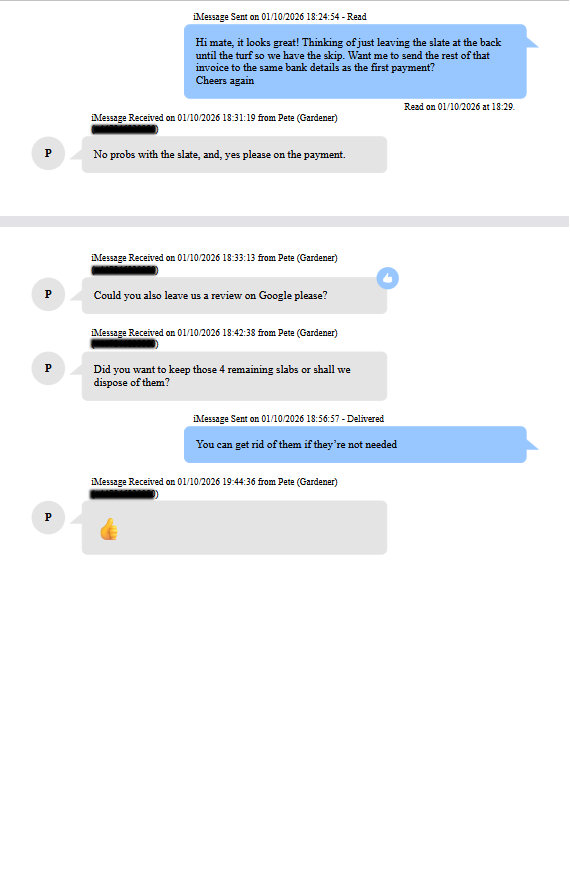
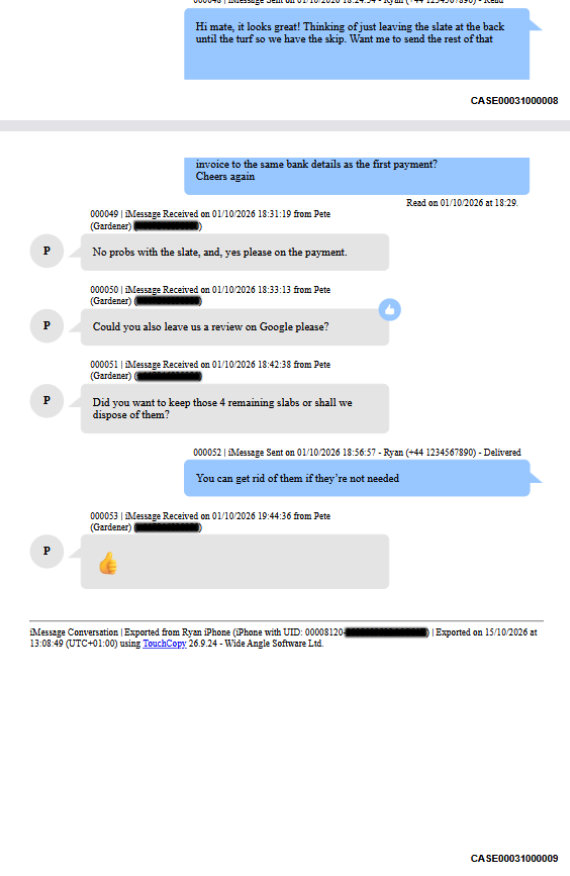
The below screenshots show the differences between a standard message conversation export, and one containing additional forensic information possible using TouchCopy. To see how to achieve this yourself, please see our recommended settings at the end of this article.
Standard Message Export
Message Export with Forensic Details
Customizing your forensic message exports
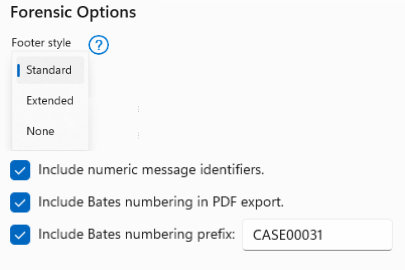
In this below section, we will explain in more detail the settings that are available within TouchCopy, and how each setting affects the exported document. These settings can be accessed via Settings > Messages. To see a full view of the messages settings within TouchCopy, click here. Below is a screenshot of the forensic settings within TouchCopy.
Footer Style
The drop-down menu gives an option to add an additional footer to the final page at the end of the exported conversation, that if selected, will contain additional information about the device and date the conversation was exported.
Standard:
Shows basic information of the device name, and the time and date the document was exported.
Extended:
Shows more detailed information, including your iPhone's Unique Identifier (UID).
Numeric message identifiers
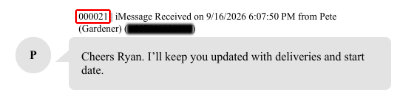
Select the "Include numeric message identifiers" option under Forensic Options to add sequential numbers to individual messages within a conversation, making them easier to identify and reference in exported documents.
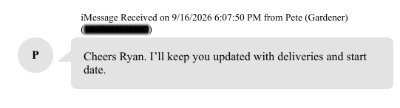
The screenshots below show these numbers alongside each message, highlighted in red.
Before
After
Bates numbering
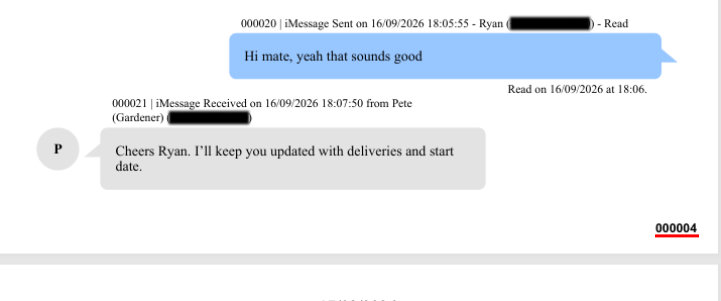
Select Include Bates numbering in PDF export within Forensic Options to add sequential page identifiers to exported PDFs, making individual pages easier to identify and reference. Here are the settings used for the example screenshots in the Bates numbering and Bates custom prefix sections.
Adds Bates numbering to the footer of each page.
Bates custom prefix
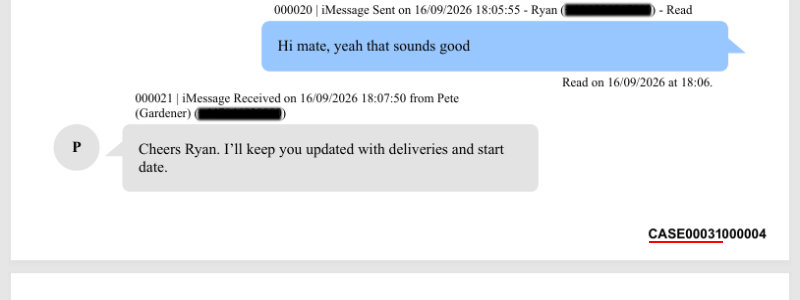
Allows you to add a prefix to each Bates number. Bates numbering restarts for each new export, so we recommend using a different prefix for each conversation to ensure that every exported page has a unique reference.
Displays your custom prefix before each Bates Number. (As shown highlighted in red)
Include details above sent messages
Option to manually add your name and telephone number above each sent message. Useful for identifying the sender in text conversations. Below you can see where to enable this setting and what values we used in the example screenshots.
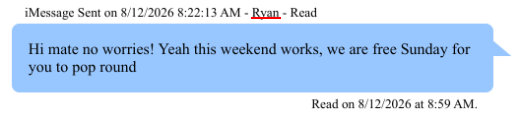
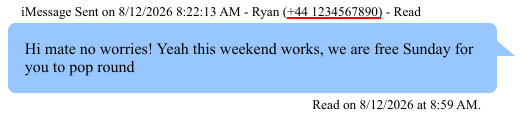
The two screenshots below are examples of what each sent message will look like when using either of these settings. (Changes highlighted in red)
Name
Name including number
PDF page numbering
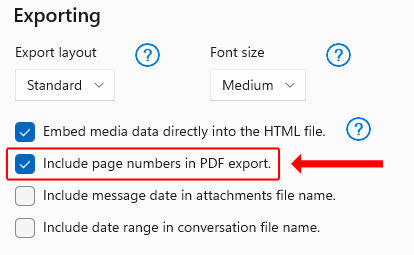
Enable this option to add page numbers to exported PDFs. For more information on saving messages as PDF, see our PDF export guide.
Note: Bates numbering takes priority over standard PDF page numbering. If Bates numbering is enabled, it overrides the PDF Page Numbering setting.
Adds basic numbering format at the footer of each page. (See highlighted in red)
Recommended settings
We recommend the following settings when exporting messages with forensic details. These options provide the most comprehensive identification and device information available within TouchCopy, making exported conversations easier to organize, reference, and review for forensic or legal purposes. Also see our page on how to print your messages for court.
Setting
Recommended Value
Export Format
PDF
Footer Style
Extended
Numeric Message Identifiers
Enabled
Bates Numbering
Enabled
Custom Bates Prefix
Enabled, with case/document specific prefix
Include Name above message
Enabled
Include Number above message
Enabled
Sort Messages by
Oldest to newest
Important: If you need messages for legal proceedings, check the requirements with your lawyer, court or legal adviser. Please note that although we have been told by our customers that they have successfully used TouchCopy and Droid Transfer to print messages and present them as evidence in court, we don't have access to details of any such cases or any involvement with any of the cases. Additionally, Wide Angle Software cannot guarantee the forensic accuracy of any data recovered while using our products.
We use cookies to provide you the best experience on our website. To find out more, read our cookie policy. You may decline non-essential cookies if you prefer.
We use cookies to track usage and optimize your experience.