Looking for a simple way to export text messages, RCS, iMessages, LINE messages, or WhatsApp chats from your iPhone to your computer? This guide will show you step-by-step how to save these messages in HTML, PDF, CSV and Plain Text formats using TouchCopy.
Follow these steps to export your iPhone messages to your computer in HTML format:
Install and open TouchCopy on your computer.
Connect your iPhone and navigate to the "Messages" tab to view your messages.
Select the conversations you wish to save by choosing the contact name or number. You can save your text messages, iMessages, WhatsApp and Line conversations.
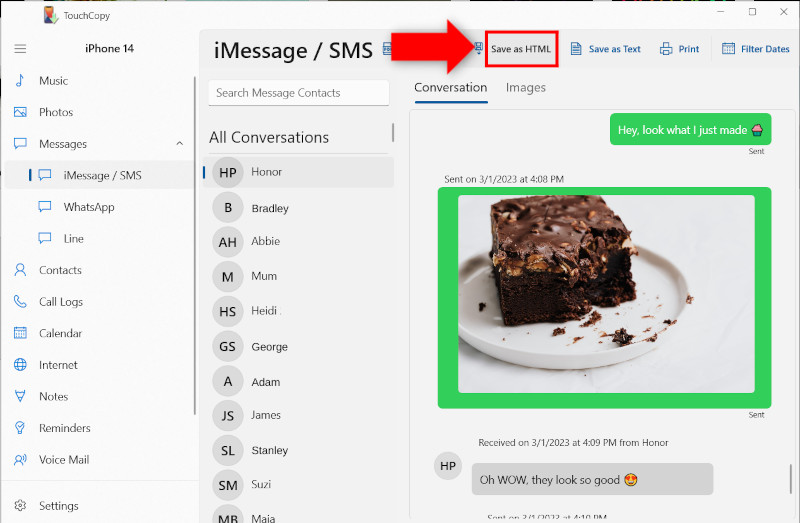
Click "Save as HTML" (PC) or "Copy to Mac" and select a location on your computer (or external drive) for your saved messages.
Confirm your selection by clicking "Select folder" or "OK" to start the export process.
Save All iPhone Messages at Once
To export all your SMS, MMS, RCS, iMessages, LINE and WhatsApp messages in one go, when your messages are loaded in TouchCopy click on "Save as HTML" or "Copy to Mac" without selecting any of your conversations. TouchCopy lets you choose where on your computer you'd like to save your messages, the default save location is usually your desktop.
Save Multiple Conversations
You can select multiple conversations by holding Ctrl (PC) or Cmd (Mac) while choosing contacts whose conversations you wish to export in TouchCopy. Next, click "Save as HTML" or "Copy to Mac" in the TouchCopy control bar to export the selected conversations to your computer. You can specify the save location for the messages within TouchCopy.
TouchCopy saves the selected conversations as .html files, with each .html file named after the individual contact. You can open these .html files using a browser such as Firefox, Chrome or Microsoft Edge.
Export Preferences for Media Attached to Your Messages
When saving as HTML, you can choose whether your attached media like images and video are embedded in the HTML file, or are saved as separate files. You can find this option in TouchCopy's Settings / Preferences.
Embedded media: All attached media is embedded in a single HTML file on your computer. If you don't need individual access to the media, this is the tidiest option.
Separate media: Even if you save the media as separate files, when opening the HTML file, your media will be shown in the HTML output (as long as the media is still in the same folder as the HTML file). This makes it easy to gain specific access to your photos and videos if you want to edit or copy them elsewhere.
Extract Text from iPhone Messages to a CSV file
CSV (Comma-Separated Values) is a simple text format that can be opened in spreadsheet applications like Microsoft Excel or Google Sheets. This format is useful for analyzing or archiving your messages.
To save your iPhone messages as CSV, follow these steps:
Open TouchCopy and navigate to the "Messages" tab.
Select the conversation you want to save.
Click "Save as CSV" (PC) or "Copy to CSV" (Mac).
Choose a location on your computer to save the CSV file.
Click "Select folder" or "OK" to complete the export.
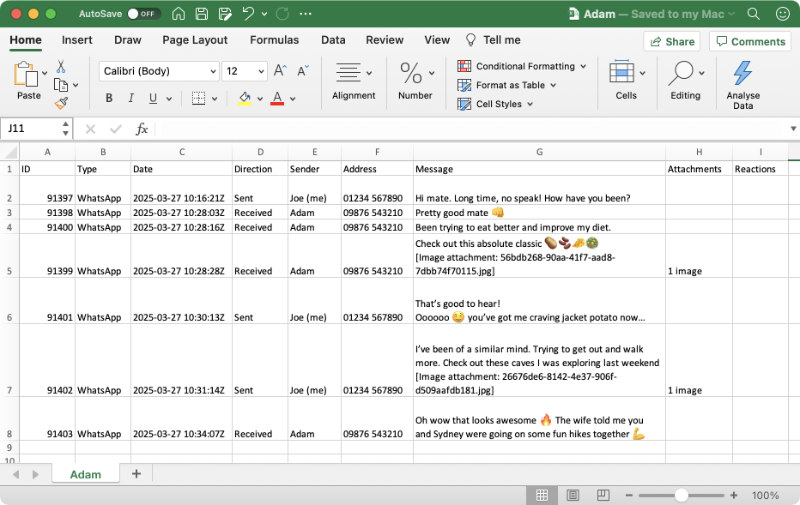
Note: The CSV file will contain the text of your messages, along with timestamps and sender information. If you also need to export media files like images or videos, use the HTML export option.
Here's an example of an iPhone conversation which has been exported as CSV with TouchCopy, viewed in Microsoft Excel:
Export Text Messages from iPhone as Plain Text
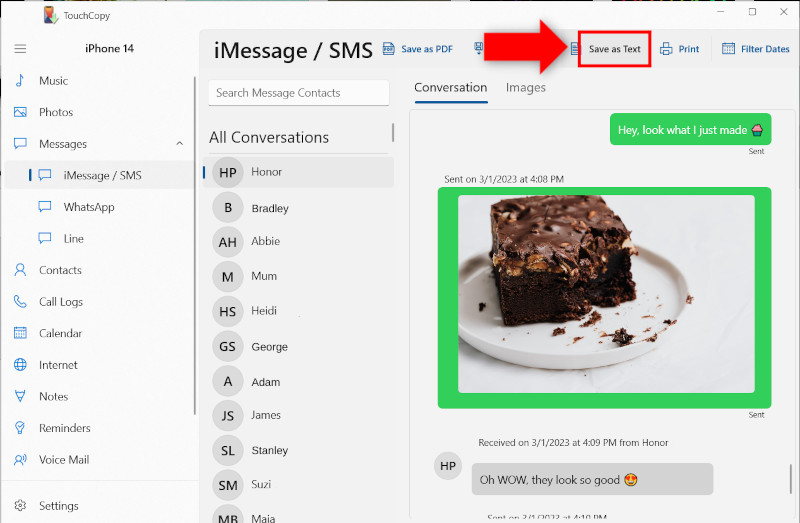
If you just want a bare-bones copy of your text conversations, this option is for you. Saving as Text will produce a plain-text document of your chosen conversation.
Follow these steps to save iPhone messages as Text:
Click the "Messages" tab and select the conversation you'd like to save.
Press "Save as Text" (PC) or "Copy to TXT" (Mac) and select a location on your PC or Mac for your messages to be saved to.
Click "Select folder" or "OK" to copy your selected conversations in text files.
Note: Media like images and videos won’t be included in plain text files. Use the HTML export option for embedded or separate media.
Saving Images, Videos, Audio Messages and Files in Your iPhone Conversations
If your conversations include photos, videos, audio messages, stickers, or other files, TouchCopy can export these to your computer alongside your messages, or on their own.
To save message media with your conversations, open the conversation in TouchCopy and click "Save as HTML" (PC) or "Copy to Mac". Images, videos and audio messages are embedded in the exported HTML file, while other file types (such as PDFs) are saved to a separate folder alongside it.
You can also configure TouchCopy to export images, videos and audio messages from iMessage, MMS, RCS, LINE and WhatsApp conversations directly to a folder on your computer. Media is saved in its original size, quality and format. On Windows, TouchCopy can also convert HEIC images to JPG via the Photo Settings.
Audio messages are saved as .CAF files on Mac and .WAV files on Windows. If supported by your device, TouchCopy will also export audio message transcriptions. For more information, see our guide on saving voice messages from iPhone.
If you don't need the message text itself, TouchCopy also lets you save only the images or attached files from a conversation.
Exporting Only Images from iPhone Messages
To save just the images from your iPhone messages without saving the entire text conversation:
Open TouchCopy and select the conversation containing the photos or stickers that you wish to save.
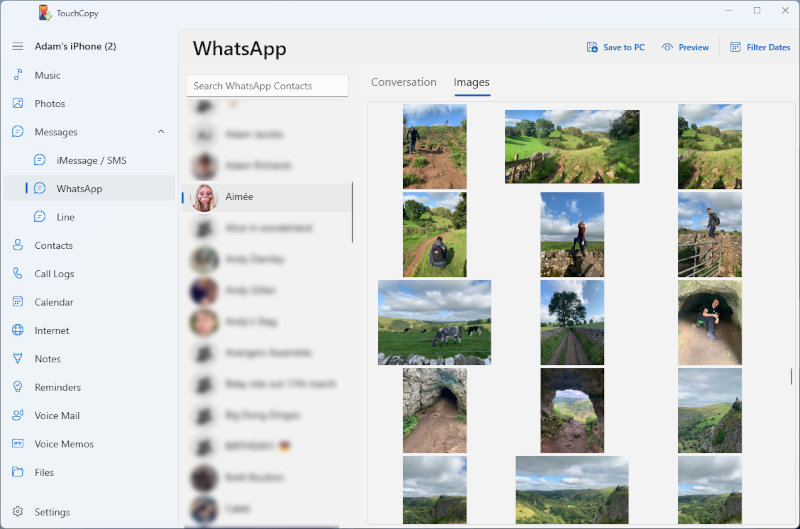
At the top of the conversation preview display, click the "Images" tab to view all the images sent and received in the selected conversation.
To save the images:
Click "Save to PC" (on Windows) or "Copy to Mac" (on Mac) without any images selected to export all photos and stickers from a selected conversation.
Alternatively, select specific images first, then hit the save button.
Exporting Only Files from iPhone Messages
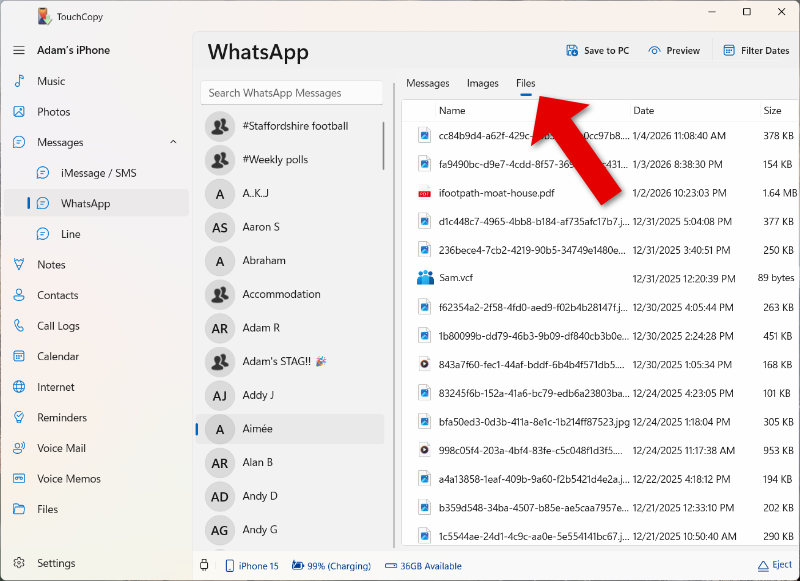
To save other files like PDF documents, videos, contacts and audio messages, use the Files tab in TouchCopy:
Open TouchCopy's Messages section and select the conversation containing the files you need.
Click the "Files" tab above the conversation preview to view all the files sent and received in the selected conversation.
Click "Save to PC" to save all, or select individual files before saving.
Video guide: How to Save iPhone Messages to Computer:
We use cookies to provide you the best experience on our website. To find out more, read our cookie policy. You may decline non-essential cookies if you prefer.
We use cookies to track usage and optimize your experience.