
Transfer information copied to your Android clipboard to PC
When you choose to "Copy" something on your Android device, the information will be stored in temporary memory on your device called the Clipboard. You can copy text from places like messages, documents, webpages and URLs to our device's Clipboard.
Using Droid Transfer, you can access the Clipboard via your PC.


How to access and copy your Android clipboard data to your PC
- Download Droid Transfer on your PC and Transfer Companion on your Android device.
- Connect your phone and your PC over a Wi-Fi or a USB connection.
- Open the "Clipboard" tab from the feature list.
- Select the clipboard item or items you need from the clipboard history list.
- Click "Save to PC" and choose where to save the file on your computer.
As you can see from the screenshot below, Droid Transfer can access the current Android clipboard content, as well as a history of items which you have copied to clipboard during your current usage of Droid Transfer. To access this section, click the "Clipboard" tab on the left of the Droid Transfer window.
To copy your clipboard data, simply click to select the item/s you want to copy, then click "Save to PC". Droid Transfer will copy your items in the corresponding format. For example, Plain Text copied from a text message will be saved to the PC as a text file; whereas text copied from a HTML webpage will be saved as a HTML file.
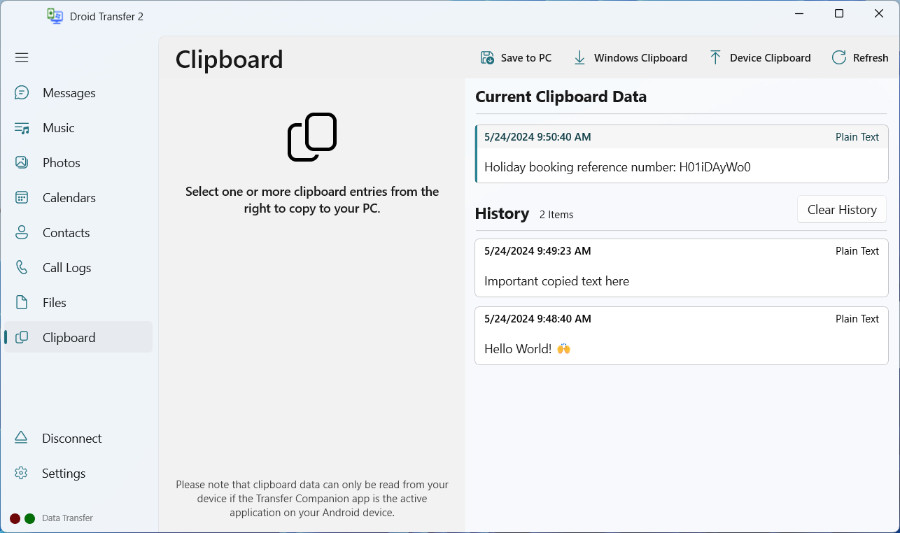
If you don't want to save the information as a file on your PC, you can even copy the information from the Android clipboard to the clipboard on your PC! To do this, select the item you want to copy to your PC clipboard, then click "Windows Clipboard". Now, you can right-click > Paste the copied text from the clipboard into a document on your PC.
Adding new items to your Android clipboard
You can add new items to your Android clipboard while using Droid Transfer.
- On your Android device, leave the Transfer Companion app running (do not close it, or the connection will be lost).
- Navigate to another app and copy the text you want to add to the clipboard.
- Return to the Transfer Companion app.
- On your computer, click "Refresh" in Droid Transfer.
The newly copied text will now appear as the Current Clipboard Data in Droid Transfer.
You can select, copy or save items from the clipboard history until you close Droid Transfer, at which point the history is cleared.
How to access and copy your Windows clipboard data to your Android
So how about vice versa? You can also copy the contents of your Windows PC clipboard to the clipboard on your connected Android device!
To do this, copy some Plain Text or HTML on your PC. Then click the "Device Clipboard" button in the Droid Transfer Clipboard section. This will add your most recent Windows clipboard item to your Android clipboard! The new clipboard item will show as your "Current Clipboard Data" in Droid Transfer.
(To use "Device Clipboard", ensure you do not have any clipboard elements selected in the view. If you have one selected, CTRL+click it to deselect it first.)
Now, if you Paste from your clipboard on your Android device, the content obtained from your Windows PC will be pasted.