TouchCopy is available as a free trial download. When you first install TouchCopy, it will run in demonstration mode with a limited set of features available for free. Please see details of TouchCopy free trial limitations.
A full license for TouchCopy will unlock the full version of the program and remove any demo restrictions.
If you have purchased a TouchCopy license, this guide will show you how to use your activation code to activate your license in TouchCopy!
Launch TouchCopy from the Windows start menu or by searching "TouchCopy" in your Windows search bar.
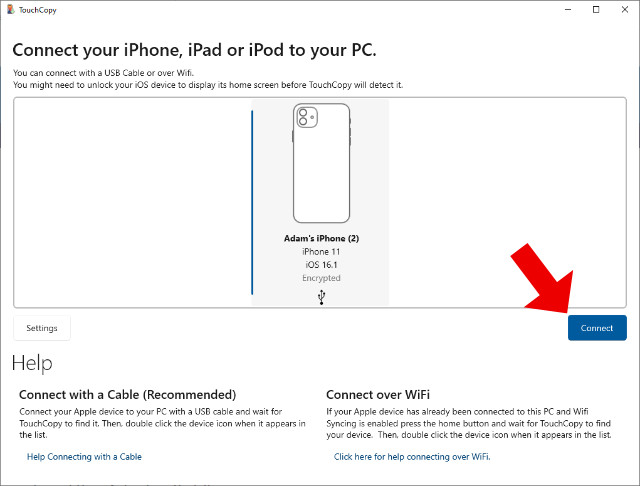
Connect your iPhone, iPad or iPod to your PC, select it in TouchCopy, then click "Connect".
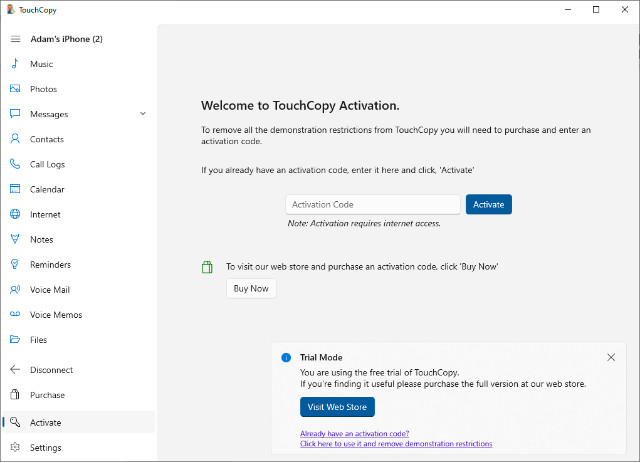
From the navigation on the left of your screen, click "Activate".
Enter your TouchCopy activation code that you received after purchasing your license. If you have not yet purchased a license, you can purchase one here.
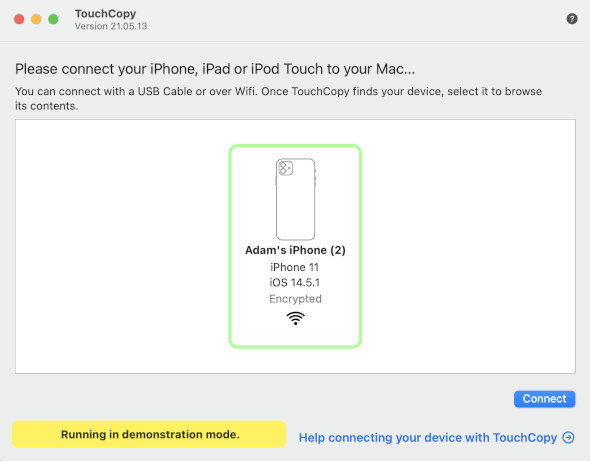
Connect your iPhone/iPod/iPad to your Mac, select it in TouchCopy, then click "Connect".
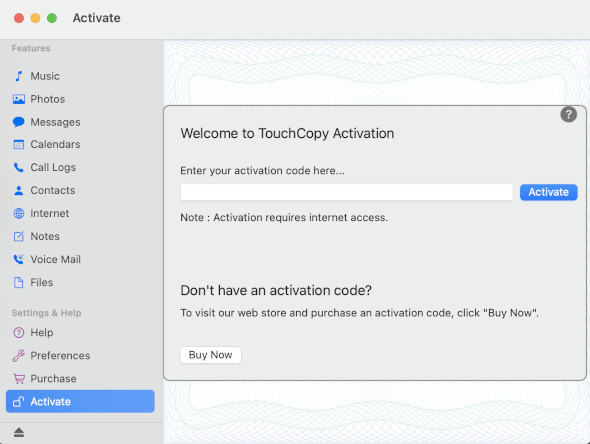
Next, click "Activate" from the toolbar on the left of the TouchCopy window.
Here, you can input your TouchCopy activation code that you received after purchasing your license. If you have not yet purchased a license, you can purchase one here.
If you own a license, but don't have your activation code handy, find out how to retrieve your activation code.
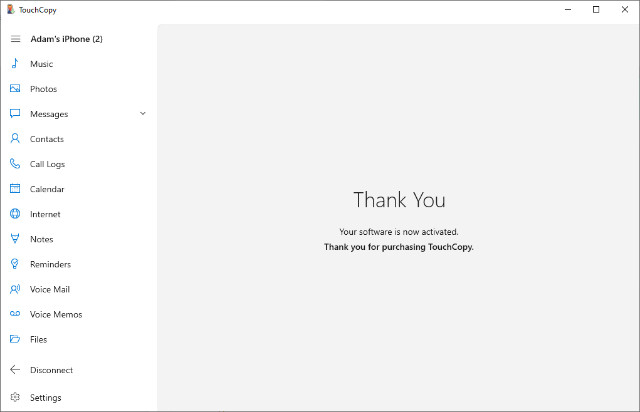
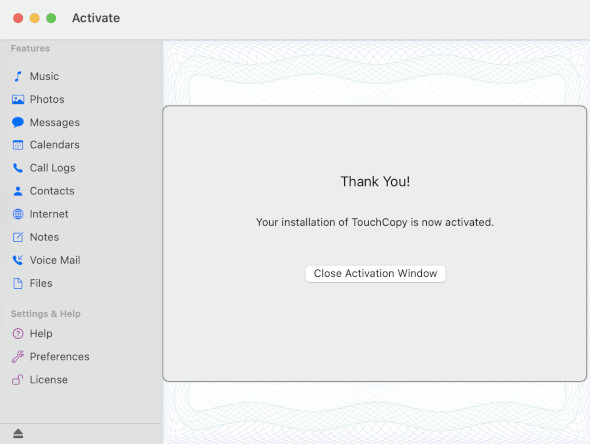
Finally, click "Activate" to complete your activation. All trial limitations have now been removed.
TouchCopy from the Microsoft Store
Manual activation is only required if you purchased a license via our website. If you purchased TouchCopy via the Microsoft Store, you will not need an activation code.
To use such a license, ensure that you install TouchCopy directly from the Microsoft Store rather than from our website. This will ensure that your purchased license is automatically applied.
Troubleshooting
If you are having trouble activating TouchCopy, there are a couple of possible causes to check.
We use cookies to provide you the best experience on our website. To find out more, read our cookie policy. You may decline non-essential cookies if you prefer.
We use cookies to track usage and optimize your experience.