
How to create a Droid Transfer / TouchCopy (Windows) desktop icon
Last Updated: |
For easy access to your favorite apps, you'll want a shortcut on your Desktop. A Desktop shortcut is displayed as an app icon, and if you double-click it, it'll open the app for you, saving you searching around for it!
To create a desktop shortcut for Droid Transfer 2 or TouchCopy on your PC:
- Click the Windows icon in your taskbar.
- Select "All" to access a list of all your apps.
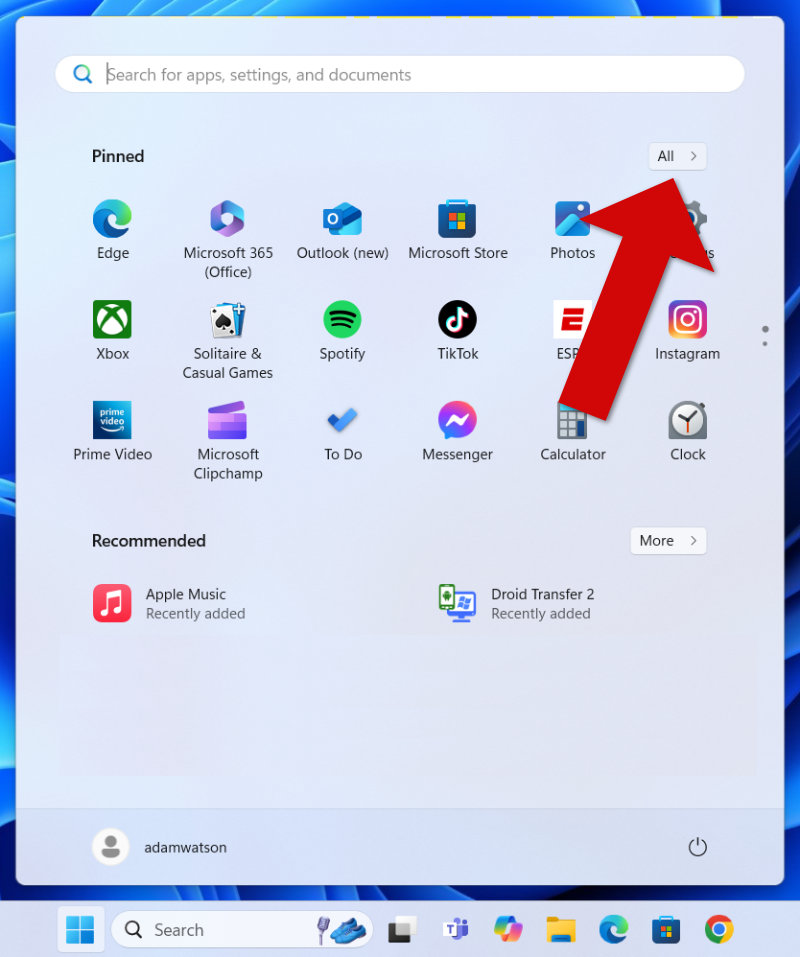
- Find Droid Transfer 2 or TouchCopy in the app list.
- Left-click and hold on the app name.
- After about a second, drag the app to your desktop.
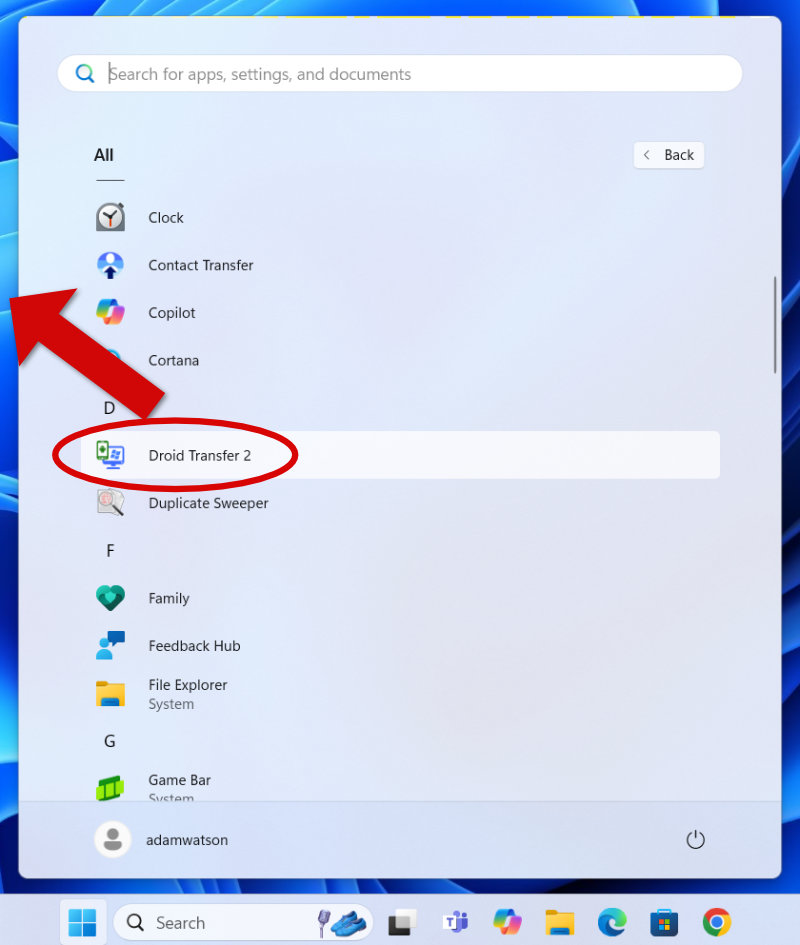
- Release to create the shortcut.
The shortcut will likely be named "Droid Transfer 2 - Shortcut" or "TouchCopy - Shortcut." To rename it, click the shortcut's text once, wait about a second, and then click the text again. This lets you rename it to "Droid Transfer" or "TouchCopy," if you prefer.
< Back to Licensing & Installation Support
 Publisher:
Wide Angle Software
Publisher:
Wide Angle Software