
Unable to install software on a PC or Mac
This article offers troubleshooting tips for fixing software installation issues on your PC or Mac, covering permission errors, app settings, and system requirements.
Check the minimum system requirements for the app
- Droid Transfer requirements
- TouchCopy requirements
- Tune Sweeper requirements
- Duplicate Sweeper requirements
- iBackup Extractor requirements
- Music Tag requirements
- Wide Angle PDF Converter requirements
- Contact Transfer requirements
Solving installation issues on a Windows PC
1. Check your App installation settings in Windows
Certain versions of Windows allow the installation of apps from the Microsoft Store only. If you prefer, you can install our apps from the Microsoft Store.
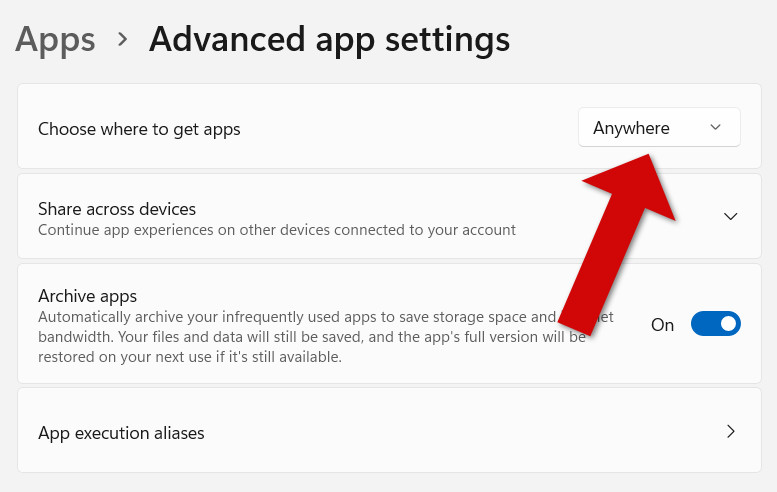
Alternatively, you can change your computer settings to allow installation of apps downloaded from our website. To do so, select Start > Settings > Apps > Advanced app settings.
On Windows 11, next to "Choose where to get apps", select "Anywhere".
On Windows 10, under "Installing apps", select "Allow apps from anywhere".
2. Download Microsoft Troubleshooter
If you're on a Windows 10 computer, you can get the free Microsoft Troubleshooter tool. This can detect and fix most issues that prevent software from installing or uninstalling programs within Windows 10.
3. Ensure you have the App Installer
If you’ve downloaded an .msix installer but it won't open, or Windows shows an “Open with” prompt, App Installer may not be installed on your PC.
You can install the Microsoft App Installer for free from the Microsoft Store.
4. Update your Microsoft .NET Framework
This step is not required if you are using the latest version of either Droid Transfer 2 or TouchCopy.
An app can fail to install if Windows is not using the latest version of the .NET framework, or if the .NET Framework got corrupted due to a Windows update or other change to the PC.
Please try downloading and installing the latest version of .NET by clicking on Download .NET 4.8 Runtime from Microsoft at the link below:
https://dotnet.microsoft.com/download/dotnet-framework/net48
If this version is already installed, there will instead be an option to "Repair" which you can choose to make sure nothing is wrong with your current installation. Please also restart your computer after updating the .NET framework.
5. Get the app from the Microsoft Store
If you're on a Windows 10 or 11 computer, you can instead choose to download our apps from the Microsoft Store as below...
- Droid Transfer (PC)
- TouchCopy (PC)
- Duplicate Sweeper (PC)
- iBackup Extractor (PC)
- Waveform Music Player (PC)
Solving installation issues on a Mac
1. Allow Installation of apps from identified developers
It may be the case that your Mac is not allowing the installation of apps that are not from the App Store. All our Mac downloads available on our website have been notarized by Apple.
In order to allow apps from identified developers like Wide Angle Software to be installed:
- Click the Apple Icon, then open System Preferences in the top-left corner of your Mac's menu bar.
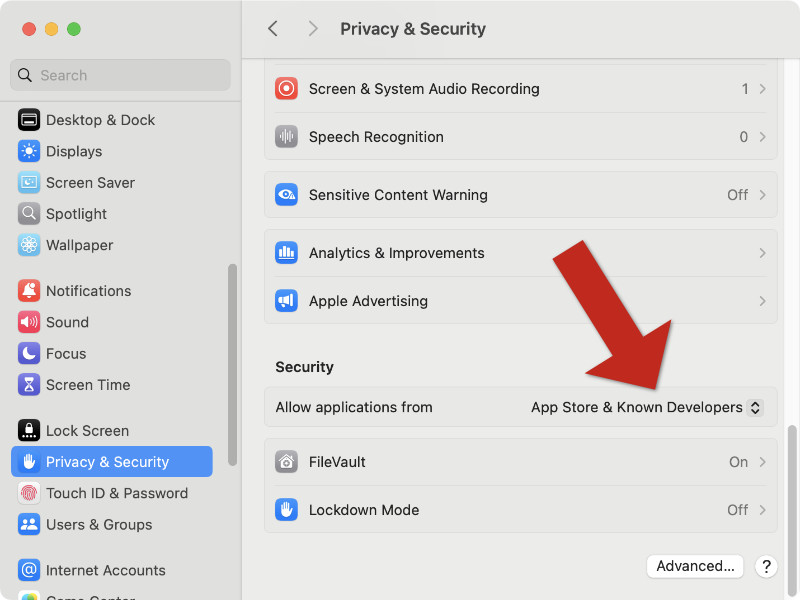
- Select Privacy & Security.
- Scroll down to Security.
- On older versions of macOS, select the "General" tab. You'll need to click the lock to allow you to make changes to these options.
- Next to Allow applications from, select App Store & Known Developers.
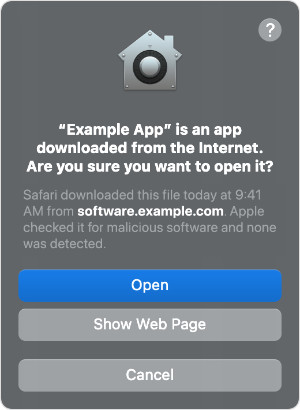
Now, once you download your program from us, you will be greeted by a popup asking you to confirm whether you would like to open the app. Opening the app will complete the installation.
2. Alternatively, you can choose to download our apps from the Mac App Store as below...