
Can Tune Sweeper remove duplicates if my music is on an external drive or network drive?
Yes - Tune Sweeper will work fine if your iTunes or Mac Music library is stored on a network drive or an external drive such as a USB drive.
Read on to learn how to scan for duplicates on your external drive. Or, if you are having trouble using the "Not in iTunes" feature, read our article on how to index your external drive.
How to remove duplicate songs from a library located on an external drive
Ensure that your music files are available to your computer file system before running Tune Sweeper. For example, you should be able to browse your music files using Windows Explorer (PC) or Finder (Mac).
Download, install and launch Tune Sweeper.
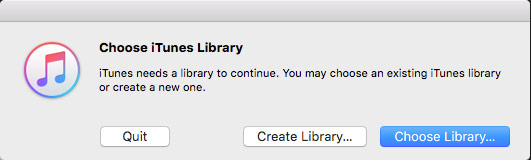
Tune Sweeper reads from your currently active iTunes library. If you need to change the active library which iTunes is using:
- Launch iTunes whilst holding the shift key down (PC) or the option key (Mac).
- Select the iTunes library that you wish to use.
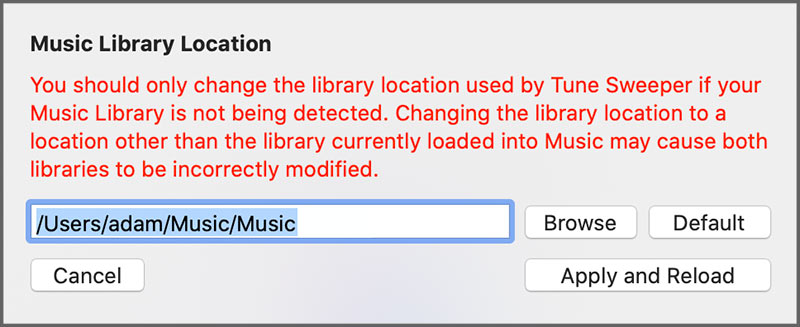
You can even set the library location manually on Tune Sweeper:
- On Windows: click File > "iTunes Library Location".
- On Mac: click Tune Sweeper 4 in the menu bar > "iTunes Library Location".
This will allow you to set the location of your library that you wish to use. Please note that this must be the library currently loaded into iTunes or the Mac Music app. Selecting a different library could result in data loss.
- Search for duplicates with Tune Sweeper.
- Once you have decided which duplicates you want to remove, click the "Remove Duplicates" button in Tune Sweeper.

Detailed Steps
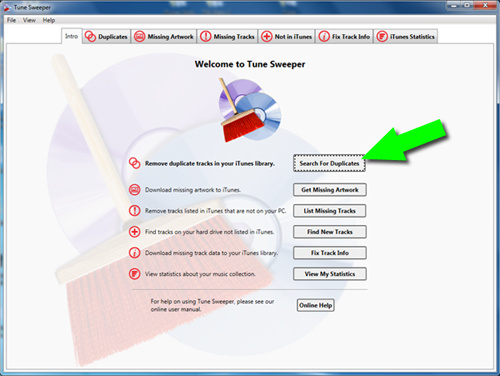
1. First, use Tune Sweeper to search for duplicates by double-clicking on the Tune Sweeper icon to run the program, then selecting "Search For Duplicates". See the Tune Sweeper user guide for details on how to configure Tune Sweeper's duplicate search criteria.
2. Tune Sweeper can help you decide which duplicate to keep and mark the rest for removal. See the Tune Sweeper User Guide for details on selecting which track to keep with Tune Sweeper.
3. Click Remove Duplicates in Tune Sweeper. You can optionally set Tune Sweeper to move the tracks it removes from your library to your recycle bin (PC) or trash (Mac). This allows you to restore the tracks from the recycle bin if required or empty the recycle bin when you no longer require the files and want to reclaim the disk space they are using.

Popular FAQs
- How do I Activate Tune Sweeper?
- I have Forgotten my License Password
- How to Remove Duplicate Music in iTunes or Mac Music
- How to Remove Duplicate Music in macOS Music App
- Tune Sweeper Failed to Find Duplicates in my iTunes or Mac Music Library
- Tune Sweeper Finds Duplicates but Does Not Remove any from iTunes or Mac Music
- How to Prevent iTunes Asking for Confirmation Before Deleting a Track
- How to Remove Duplicate Music from your iPhone using Tune Sweeper
- 4 Easy Ways to Delete Music from your iPhone
- How to get rid of Apple Music
- Can I Change the iTunes or Mac Music Library that Tune Sweeper Reads?
- How to Add Music from an External Hard Drive or USB drive to iTunes or Mac Music
- Tune Sweeper Displays All my Tracks as Missing
- I have Purchased Tune Sweeper on the Mac App Store. How do I Update it?
- What are the Free Trial Limitations in Tune Sweeper?
- How does Tune Sweeper Handle Playlists?