
How to add music from an external hard drive or USB drive to iTunes or the Mac Music app with Tune Sweeper
Tune Sweeper detects music stored on your computer that isn't included in your iTunes or Mac Music library, allowing you to easily add missing tracks. To do this, simply scan your library with Tune Sweeper and use the Not in iTunes/Music tab to add songs from your computer.
If the Not in iTunes/Music feature doesn't detect music from an external hard drive or USB drive, it may be because those drives aren't included in the Windows Search configuration (for PC users). Tune Sweeper for Windows relies on the Windows Search service to locate music, meaning it can only search in locations specified within your Windows search settings.
On Mac, Tune Sweeper searches for music across your system but may require access permissions for external drives. Ensure your external storage is properly mounted and accessible in Finder to include its contents in the scan. This guide will also show you how to manually point Tune Sweeper to the music on your external drive.
Please follow the steps below for details on how to add music on your external drive or USB drive to the search:

Add a drive or folder to search with Tune Sweeper
When using the "Not in iTunes/Music" feature, if Tune Sweeper does not find your music on an external / USB drive, it is likely that the drive is not indexed by Windows, or otherwise inaccessible on Mac. This will prevent Tune Sweeper from finding your music.
To resolve this on PC open Tune Sweeper > View > Preferences > Not in iTunes.
Or on Mac, open Tune Sweeper and click "Tune Sweeper 4" in the menu bar > Settings... > Not in Music
Here, click "Add Folder" on PC, or the "+" on Mac. Navigate to your external or USB drive, then click OK.
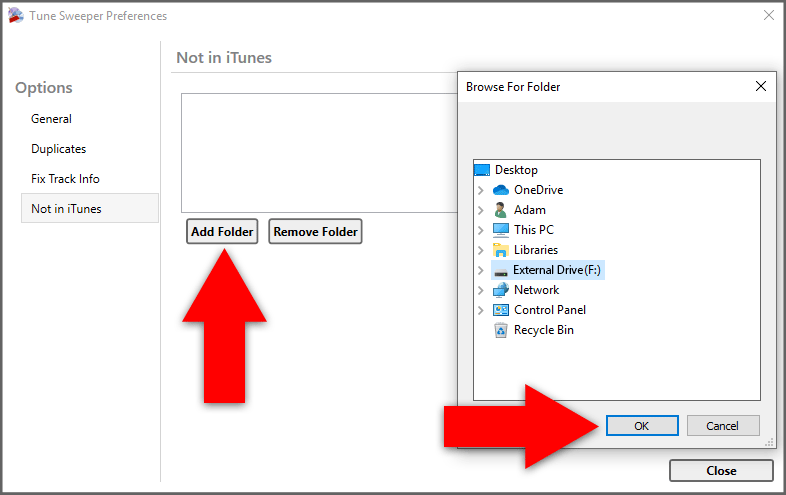
Now you can close preferences and run the "Not in iTunes/Music" feature. Tune Sweeper should now show tracks found in your external drive.
Manually add drives to index using Windows
Alternatively, you can index your external drives on Windows. This will also allow Tune Sweeper to find and scan files on the external drives.
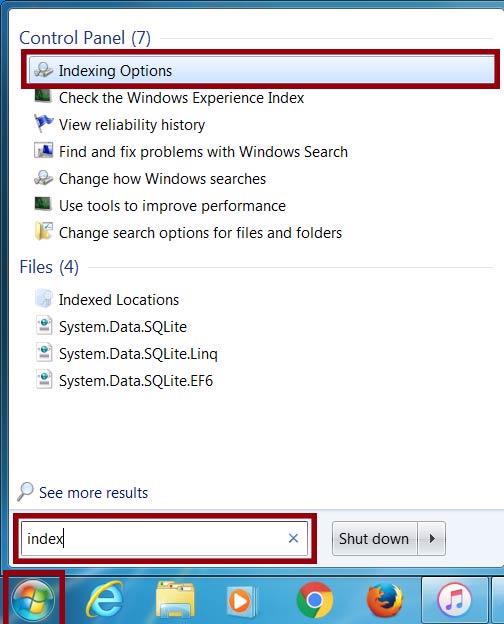
- Click Start, and type "Indexing Options". Select the app of the same name when it appears.
- Here, add the music folder that you want to be indexed.
- Once indexing is complete, relaunch Tune Sweeper which should now be able to find music in the folder/s now indexed on your external drive.

Popular FAQs
- How do I Activate Tune Sweeper?
- I have Forgotten my License Password
- How to Remove Duplicate Music in iTunes or Mac Music
- How to Remove Duplicate Music in macOS Music App
- Tune Sweeper Failed to Find Duplicates in my iTunes or Mac Music Library
- Tune Sweeper Finds Duplicates but Does Not Remove any from iTunes or Mac Music
- How to Prevent iTunes Asking for Confirmation Before Deleting a Track
- How to Remove Duplicate Music from your iPhone using Tune Sweeper
- Can Tune Sweeper Work if my Music is on an External Drive or Network drive?
- 4 Easy Ways to Delete Music from your iPhone
- How to get rid of Apple Music
- Can I Change the iTunes or Mac Music Library that Tune Sweeper Reads?
- Tune Sweeper Displays All my Tracks as Missing
- I have Purchased Tune Sweeper on the Mac App Store. How do I Update it?
- What are the Free Trial Limitations in Tune Sweeper?
- How does Tune Sweeper Handle Playlists?