
Upgrading Droid Transfer to Droid Transfer Version 2
If you're interested in upgrading from Droid Transfer version 1, please note that this is a paid upgrade due to the significant updates in both Transfer Companion 5 and Droid Transfer 2.
As a valued customer, we'd like to offer you a 25% discount on your upgrade.
Note: Droid Transfer 2 is for PCs running Windows 10 and higher.
Using an older version of Windows? You can continue to use Droid Transfer 1.
How to Upgrade to Droid Transfer 2
- Uninstall Droid Transfer 1 from your PC.
- Download and install Droid Transfer 2.
- Launch Droid Transfer 2 and click "Activate" at the bottom of the Welcome screen.
- Enter your Droid Transfer 1 activation code and click "Activate".
- You'll receive a popup advising that an upgrade is required, along with your exclusive upgrade discount code. Copy the discount code.
- Go to the Droid Transfer purchase page on our website.
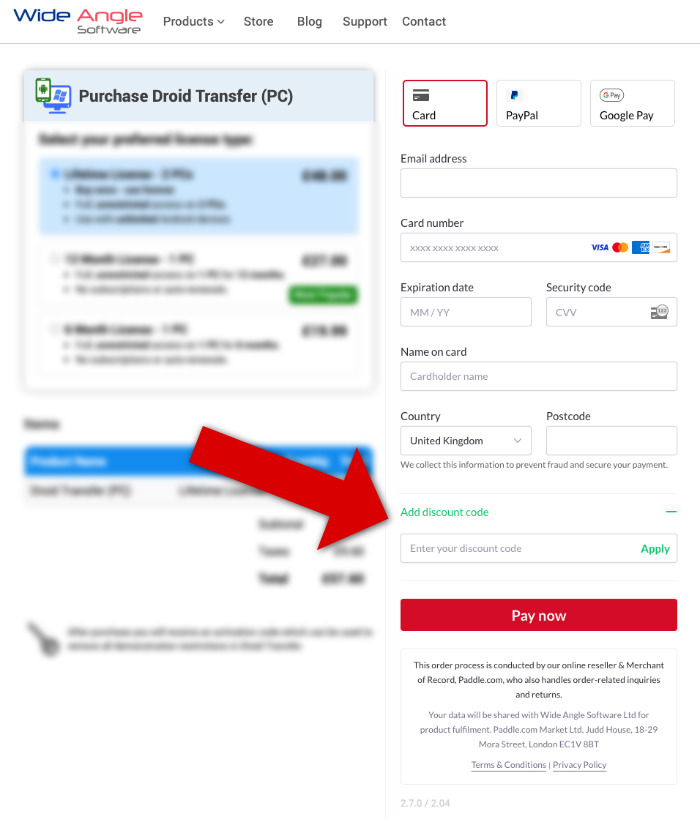
- Select the Lifetime license (the 25% discount applies to this license type only).
- Click "Add discount code", paste your discount code, and click "Apply".
- Complete the checkout to finish purchasing your license.
Licences purchased with this offer unlock the full feature set of Droid Transfer 2 once activated. While regular updates are free, we may charge for future major upgrades requiring substantial development to maintain Android compatibility.
If you prefer not to upgrade, you can continue using Droid Transfer 1 on your PC, alongside Transfer Companion 4 on your Android device. For details of how to install these earlier versions of the apps, please visit the Droid Transfer 1 installation guide.
Ensure you are using the correct version of the Transfer Companion app
To connect your Android device with Droid Transfer 2 on your PC, first make sure you have the latest version of the free Transfer Companion app installed on your Android device.
To check for Transfer Companion updates on your Android:
- Open the Google Play Store.
- Tap the menu icon, and select "My apps & games".
- Tap "Update" next to Transfer Companion.
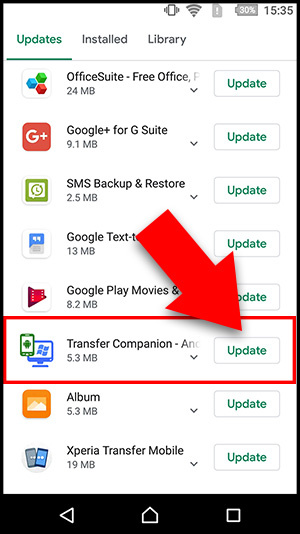
If Transfer Companion is not listed, you can download the latest version of the app from the Google Play Store here:
https://play.google.com/store/apps/details?id=was.android.transfercompanion.
Or, simply search "Transfer Companion" on the Google Play Store.
What's New in Droid Transfer 2?
Droid Transfer 2 is a major update featuring a sleek, modern interface designed for Windows 10 and 11.
This significant update delivers improved performance across all features, including faster and more reliable Wi-Fi connectivity, enhanced security of data transfers, as well as improvements in the export of Android messages, call logs, photos, and other data. For details of what's new in the recent Droid Transfer versions and to download the latest software update, please visit the Droid Transfer update page.
See Droid Transfer 2 in Action

 Droid Transfer 2
Transfer and manage your Android device media from your Windows PC.
Learn more DownloadPopular FAQs
- Activating Droid Transfer from Trial Mode
- Droid Transfer Activation Code Issues: Troubleshooting Guide
- What to do if Droid Transfer Will Not Open on Your PC
- Fix: Unable to install Droid Transfer on PC
- How to Create a Desktop Icon for Droid Transfer
- Is Droid Transfer Safe? Why You Can Trust It
- How to Deactivate Your Software License Before Transferring to a New Computer
- Unable to Download Droid Transfer- Insufficient Permissions
- How to Install a Previous Version of Transfer Companion
- How to Uninstall Droid Transfer from your PC