
How to Set App Permissions for Transfer Companion to read and copy your Android content
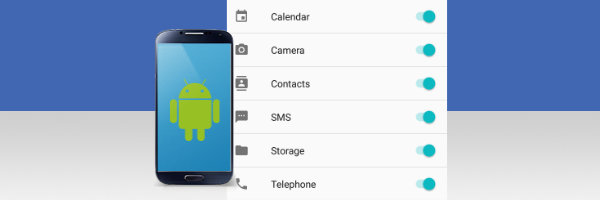
Droid Transfer allows you to copy any kind of content from your Android device to your PC.
In order for the software to do this, it requires permission to access the content on your Android device.
You should receive a pop up on your Android when a permission is required by the software. If this is the case, tap "Allow" to allow the requested permission. You can then click "Retry" in Droid Transfer and go ahead with the task you were performing.
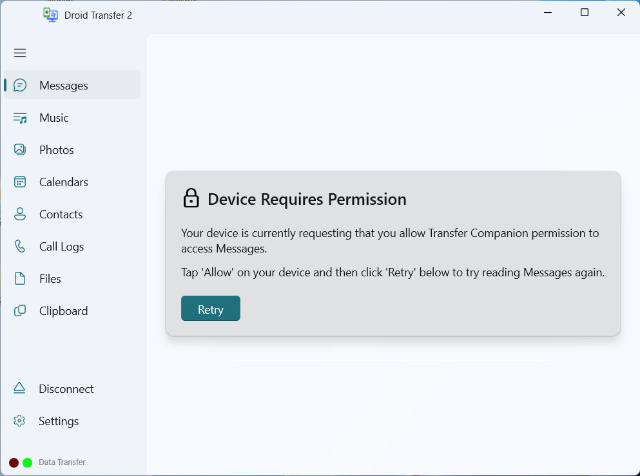
However, if you don't receive the prompt when Droid Transfer is awaiting the permission, please use the steps below to manually grant permissions.
Take a look at the list below to see what each permission is used for:
- Calendar: Access your calendars and events
- Camera: Access to your camera roll photos
- Contacts: Access your address book (used for the Contacts and Messages section of Droid Transfer)
- SMS: Access to your text message conversations
- Telephone: Access to your call history
- Storage: Access to other files on your device
Only content you have chosen to copy will be copied to your desired location on your PC. Content is never shared with any third parties - all functions are completed locally on your computer.
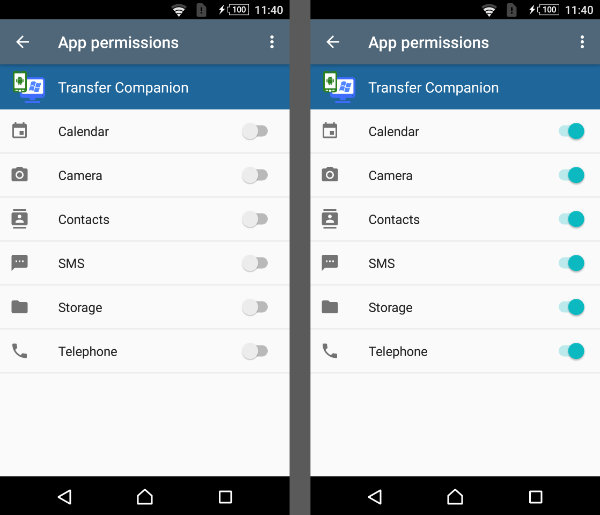
How to set App permissions for Transfer Companion
- On your Android device, open the Settings app.
- Tap "Apps" or "Apps & Notifications".
- Scroll down and select Transfer Companion.
- Tap Permissions.
- Enable all the permissions you'd like the app to have.
To make sure you're getting the latest software features, please make sure you're using the latest versions of Droid Transfer for PC and the Transfer Companion app...

Set "All Files Access"
Depending on your Android device, you may also be able to set further permissions for Transfer Companion.
- On your Android device, open the Settings app.
- Tap "Apps" > "Special App Access" > "All Files Access".
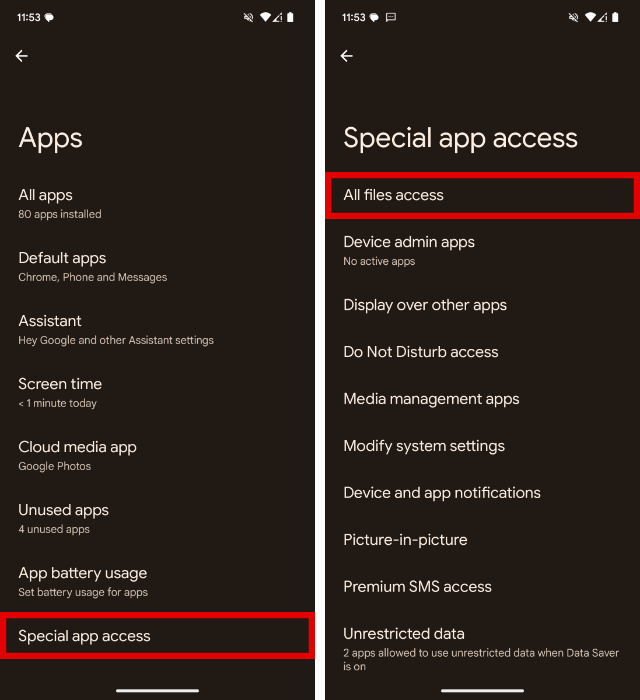
- Select Transfer Companion from the list of apps.
- Tap the toggle to enable "Allow access to manage all files".
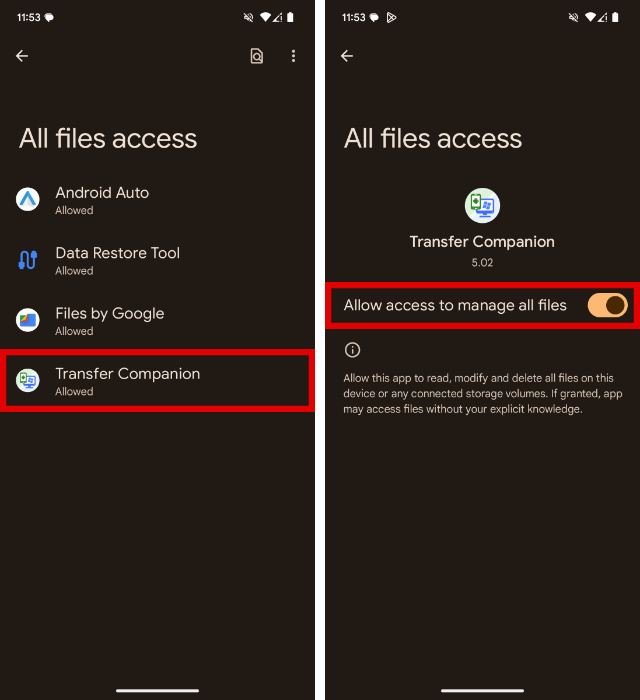
With these permissions in place, you should be able to access all your Android device's content in Droid Transfer!

 Droid Transfer 2
Transfer and manage your Android device media from your Windows PC.
Learn more Download