
Will TouchCopy create duplicates when copying my iPod or iPhone music?
No. When copying music from a device, TouchCopy will check your chosen location to ensure that it does not create duplicates of tracks which already exist there.
When you use TouchCopy to copy iPod or iPhone songs which are already in your iTunes or Apple Music library, a duplicate copy will NOT be created. TouchCopy will check to see if a song already exists in your music library before copying it from your iPod, iPhone or iPad.
If you are copying a playlist from your device to iTunes or the Apple Music app, TouchCopy will copy the music listed in the playlist, if it does not already exist in your library. However, if the music listed in the playlist is already available in your library, TouchCopy will not create duplicates of the tracks, it will simply create a link from the playlist entry to the existing song.
You can use TouchCopy to find out which songs on your device are not also available in your iTunes or Apple Music app library. To find this list, click the "iTunes" or "Music" header in TouchCopy for PC, or the "Not in Music app" header in TouchCopy for Mac. You can click "Copy to iTunes/Music" from this list, as opposed to copying your entire list of iPod music, to save you time!
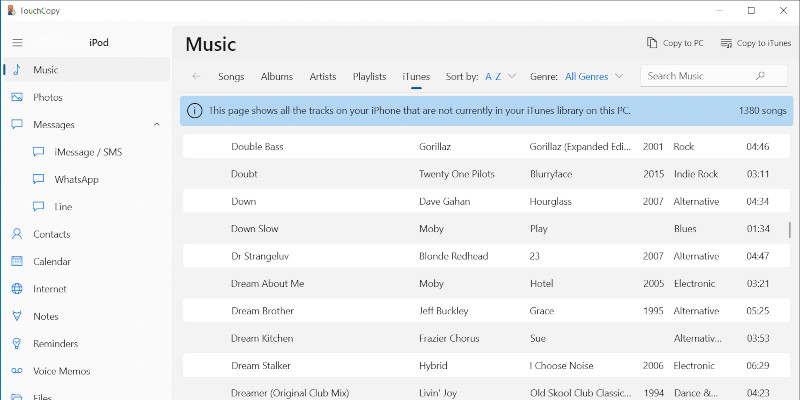
If you are copying music to your computer (using "Copy to PC" or "Copy to Mac"), rather than directly to your iTunes/Music library, it works slightly differently.
In this case, TouchCopy will check your destination folder to see if your music already exists there. If you attempt to copy music which already exists, the music will not be duplicated.
On the other hand, if your music exists in FolderA, and you tell TouchCopy to copy your music to FolderB, TouchCopy will copy your music as it has not checked FolderA. In this case, you can have the same tracks existing in both FolderA and FolderB.
Using iTunes to find duplicates
Occasionally, you may find that you have more than one copy of the same song or album in iTunes. Duplicates can appear for a number of reasons, including manually inputting songs into the library from a PC or merging multiple libraries together. This can leave your library looking messy, and you'll duplicate these tracks more often than you should when shuffle-playing your songs.
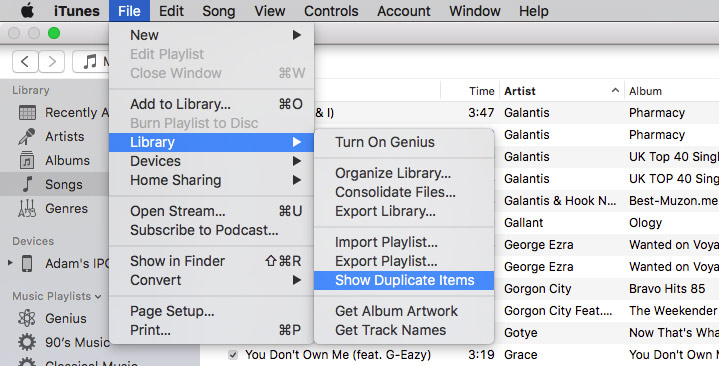
If for some reason you have duplicate music in your iTunes library, go to iTunes > File > Show Duplicates. This will allow you to quickly find duplicate tracks. You can then delete these in iTunes by selecting the entries which you would like to delete, right-click, then hit "Delete from library".
Using Tune Sweeper to delete duplicate music
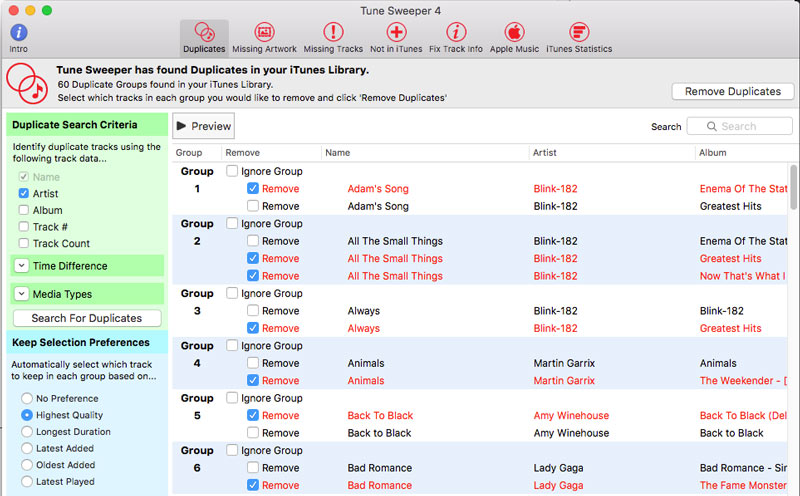
Deleting duplicate tracks in iTunes is easy if there are only a couple of instances. However, what if you have loads of duplicate entries in your iTunes library? If this is the case, and you want to save yourself lots of time, try Tune Sweeper.
Tune Sweeper will scan your iTunes library, return a list of duplicates and even pick and remove the tracks which you don't want. Tune Sweeper can do this automatically, allowing you to keep either the newest or oldest files, based on your preference. With Tune Sweeper, you can even set search preferences, allowing you to find duplicates by comparing Song Title, Artist, Album and more.
Find out more about Tune Sweeper.


Popular FAQs
- How do I Transfer Music from Old iPod to my New iPod or iPhone?
- Transfer Music from iPod / iPhone to a Windows 10 or 11 Computer
- How to Transfer Music from iPod to USB Stick / Flash Drive
- How to Transfer Music from iPhone to Music App on macOS
- How can I Transfer my Music and Playlists into iTunes?
- TouchCopy Failed to Copy Music to iTunes or Computer
- How to Merge Different iTunes Libraries?
- How do I Transfer Ringtones from iPhone to Computer without iTunes
- Transfer Music from Mac formatted iPod to PC
- Can TouchCopy transfer DRM protected music to my computer?
- Which iPod Song Data is TouchCopy Capable of Copying from my iPod to iTunes?
- How to Transfer Music from iPhone to Android
- TouchCopy is not Copying my Music and Playlists to my Computer
- How do I Get Rid of the Exclamation Mark Next to the Songs I Copied to iTunes?