
TouchCopy does not detect my iPod
This article provides recommended steps for TouchCopy to find standard click-wheel iPods, such as iPod Classics and first to fifth-generation iPod Nanos.
Check out our other guide for help with TouchCopy detecting your iPod without a click-wheel, iPod Touch, iPhone or iPad.
1. Update TouchCopy
Ensure you're using the latest version of TouchCopy for the best performance and latest fixes.
You can check for updates in the app by going to Settings (PC) / Preferences (Mac) > Updates, or download the latest version below.


2. Use Disk Mode if using a click-wheel iPod
Reset your iPod and place it in disk mode...
Make sure your iPod is disconnected from your computer.
|
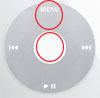
Reset your iPod by pressing and holding the center key and Menu key. You need to hold these keys down together for about 5 seconds until your iPod resets. |
|
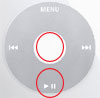
As your iPod resets the Apple logo appears on the screen, press and hold the center key and Play/Pause key together until a check mark appears on the iPod screen. You can now let go of the iPod keys. |
Now connect your iPod to your computer and start up TouchCopy.
And to return from Disk Mode afterwards...
|
|
Reset your iPod again by pressing and holding the center key and Menu key. Remember to hold these keys down together for about 5 seconds until your iPod resets. |
3. Check for required connection components on your PC
To use an iPod with a click wheel with TouchCopy, you don't need the Apple Devices app or iTunes. However, installing or reinstalling one of these apps can help ensure your system has all the required connection files in place.
Apple Devices
You can get the free Apple Devices app from the Microsoft Store. Once installed, you can launch Apple Devices if it does not open automatically.
Now you can connect your iPod using your USB cable.
Apple Devices will recognize the iPod, but it may prompt you to install an extra component to be able to communicate with the iPod. If so, click "Download and Install" on the prompt.
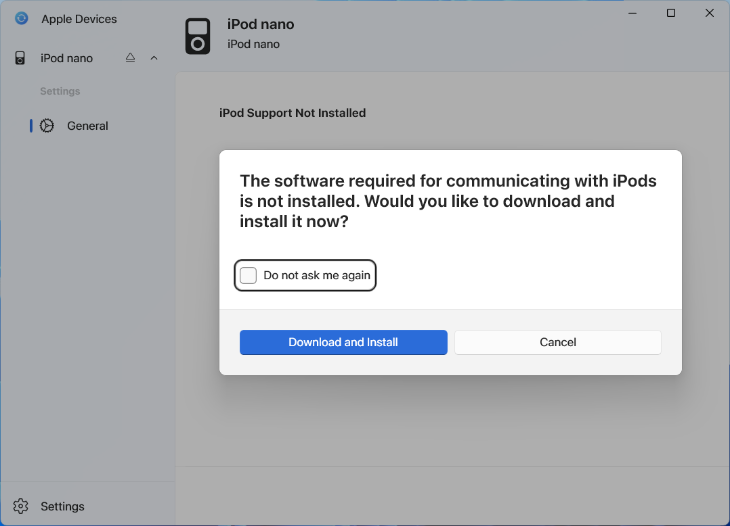
Upon completion, Apple Devices should successfully load your iPod into view, where you can check for updates, restore your iPod and more.
Now, to connect with TouchCopy, please close the Apple Devices app and launch TouchCopy!
iTunes
If you use iTunes, go to Help > Diagnostics. Here, choose to run the "Device Connectivity Test" and make sure the iPod Support service is installed on your PC.
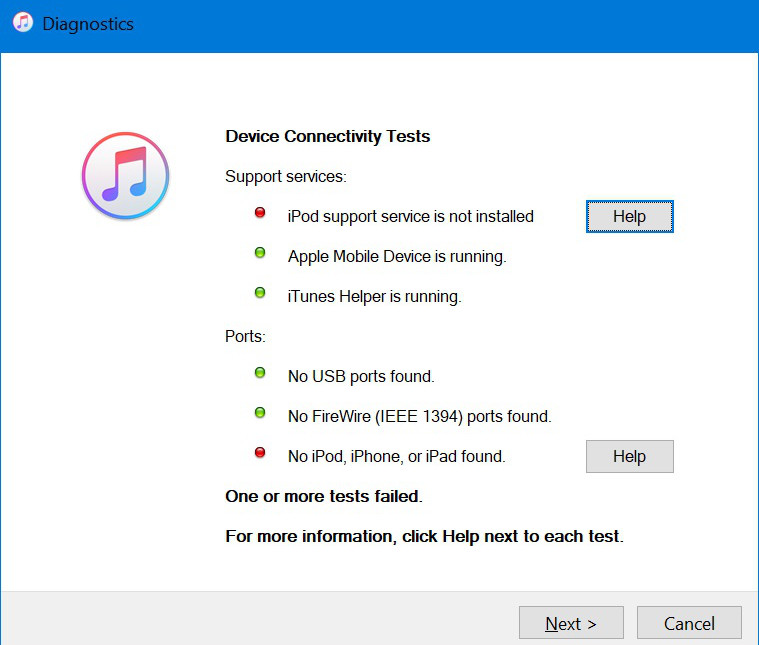
If the iPod Support service is missing, we recommend uninstalling your current iTunes version from your computer. Then, download and install iTunes directly from the Apple website using the relevant link below.
Download iTunes for Windows 64 bit Download iTunes for Windows 32 bit4. Run TouchCopy as administrator
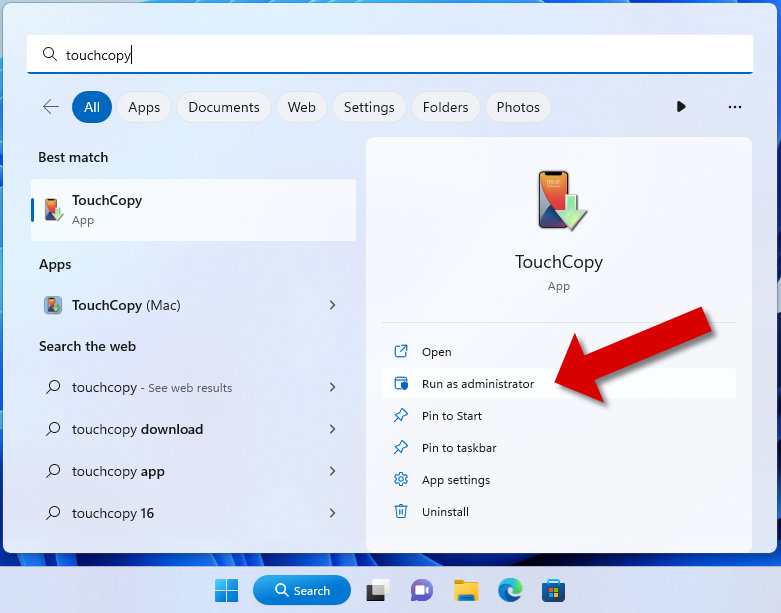
Please make sure that TouchCopy has the correct permissions to run as expected, run it as administrator.
- Click the Start menu on your computer and search for "TouchCopy".
- Select the TouchCopy app entry and choose "Run as administrator".
Further troubleshooting
If your problems persist, please ensure that iTunes can find your device. Please check our guide for further help on how to solve iTunes not detecting your iPod, iPhone or iPad. Once iTunes has found your iPod, close down iTunes and try using TouchCopy again.
Is your iPod formatted for Mac?
iTunes does not need to be installed if you're using an iPod with a click wheel. However, please note that TouchCopy for PC will not be able to find Mac-formatted iPods (except iPod Touch, iPhone and iPad).
Please see our article for details on how to copy music from a Mac-formatted iPod to your PC.
Contact Us
If you continue to have problems with TouchCopy detecting your iPod, please contact our support team. We'll do our best to get TouchCopy working for you.

Popular FAQs
- Troubleshooting TouchCopy Detecting Your iPhone, iPod, or iPad
- How to Connect with TouchCopy using WiFi + Troubleshooting
- Solved: iTunes Does Not Recognize my iPhone
- How to Ensure Apple Mobile Device Service is running
- Trust This Computer prompt not showing
- iTunes Cannot Sync with my iPod After Using TouchCopy
- TouchCopy is not Displaying my Messages, Contacts, Calendars or Notes
- TouchCopy is Stuck while Creating a Backup of my Device