
How to ensure Apple Mobile Device Service is running.
Summary
To ensure the Apple Mobile Device Service is running, follow these steps, on a Windows PC...
- Press the "Windows" button and type "Services".
- Select "Services" from the search results.
- Find "Apple Mobile Device" in the list of displayed services.
- If it does not say "Started" or "Running" next to it, right click the service and select "Start".
Detailed Steps
TouchCopy allows you to transfer Music, Photos, Contacts, Messages and loads more from iPod, iPhone and iPad to your computer. For TouchCopy to detect your device on your computer, it will need Apple's Mobile Device Service running.
This article describes how to check if the required services are running on your PC and how to enable them.
Opening services in Windows
Press the windows button, and type "services" in the "Start Search" box. Click the "Services" item in the search results.
Checking service status
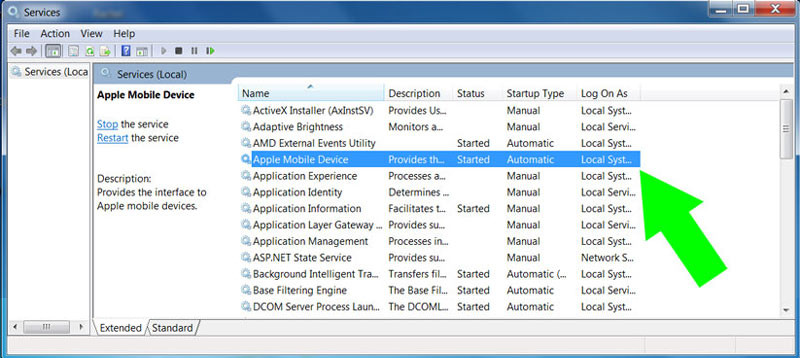
In the list of installed windows services that appear, look for "Apple Mobile Device". The status of this service should be "Started". If the status is something else, right click on on the services name and select "Start" from the pop-up menu.
If "Apple Mobile Device" does not appear on the list, you will need to re-install the latest version of iTunes from https://www.apple.com/itunes/
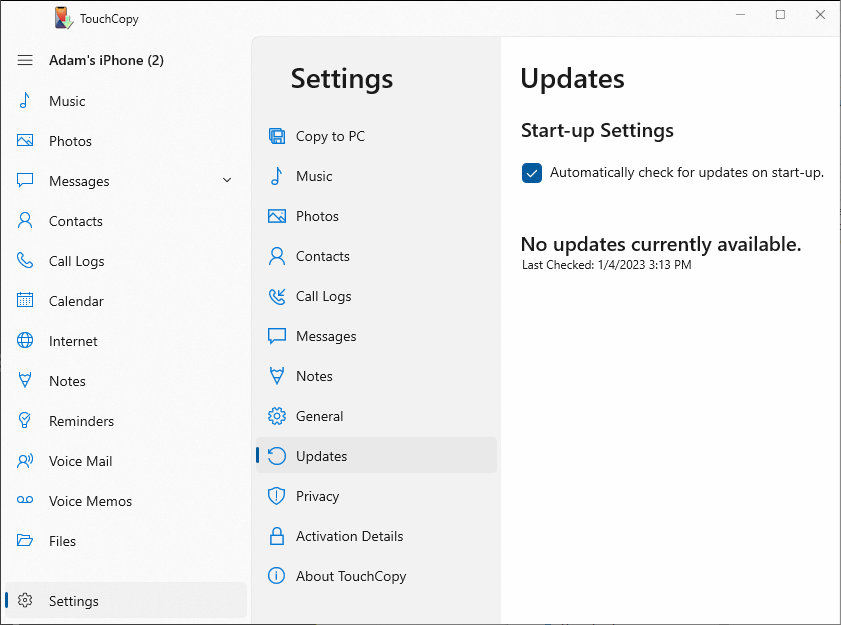
Make sure you're using the latest version of TouchCopy, by going to Settings -> Updates from within the software. Update your software if you need to and restart TouchCopy, then connect your iPod, iPhone or iPad.


Popular FAQs
- Troubleshooting TouchCopy Detecting Your iPhone, iPod, or iPad
- How to Connect with TouchCopy using WiFi + Troubleshooting
- TouchCopy Does Not Detect my Click-Wheel iPod
- Solved: iTunes Does Not Recognize my iPhone
- Trust This Computer prompt not showing
- iTunes Cannot Sync with my iPod After Using TouchCopy
- TouchCopy is not Displaying my Messages, Contacts, Calendars or Notes
- TouchCopy is Stuck while Creating a Backup of my Device