
How to create a backup of your iOS device

You can use iTunes, the Apple Devices app or Finder to create a backup of your iPod Touch, iPad or iPhone on your computer. Your backup will contain your iOS device data, such as your messages, contacts, calendars and call logs.
These backups can be used to restore your device, in case something goes wrong with it. However, you can't access the content in the backup on your computer without a third-party app. iBackup Extractor will help you browse and extract the information held within these backup archives.
- Backup your iOS device using a Windows computer
- Backup your iOS device using a Mac
- Accessing your backed-up files
Backup your iOS device using a Windows computer
On Windows, you can use the Apple Devices app or iTunes to back up your iOS device.
- Open Apple Devices or iTunes on your computer.
- Connect your iPhone, iPad or iPod Touch to your computer with your USB cable.
- In iTunes, click your device icon to access your device summary.
- Apple Devices will automatically take you to the device summary.
- Select "Backup all of the data on your iPhone to this computer".
- Tick "Encrypt local backup" if you'd like to protect the backup with a password. This is required if you want to back up sensitive data like Health and Activity.
- Click "Back Up Now".
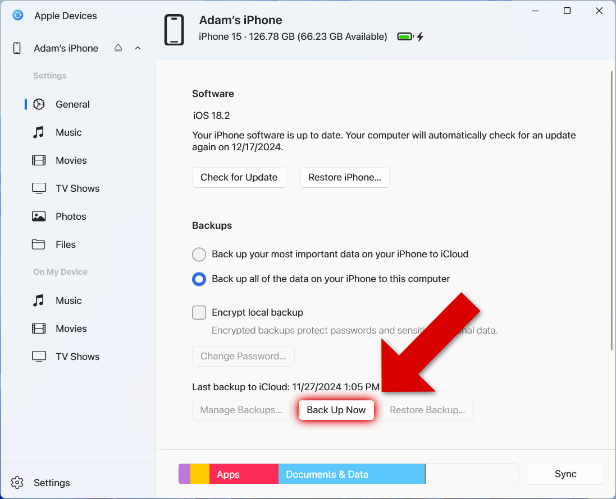
As you can see, there's also the option to back up your device to iCloud. However, if you want to be able to access the files in your backup with iBackup Extractor, the software will need access to a local backup, rather than in iCloud.
Backup your iOS device using a Mac
If you are using a Mac or MacBook running macOS Catalina or higher, you will have noticed that iTunes has been replaced by the Music app.
For this reason, Apple has changed the way you can back up your iPhone, iPod or iPad. Now, you'll need to use the Finder app. Here's how it's done...
- Open Finder on your Mac.
- Connect your iOS device using your USB cable.
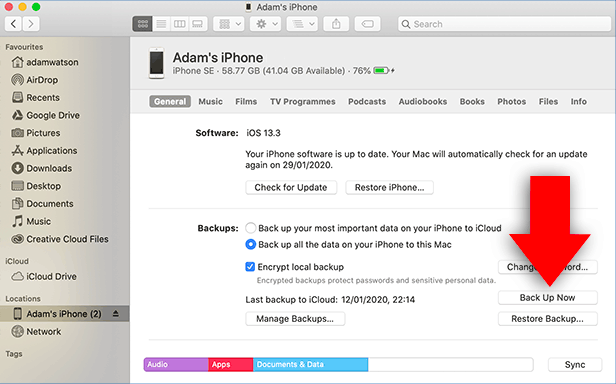
- Select your device from the list of Locations on the left of the Finder window.
- Enable "Back up all the data on your {device} to this Mac".
- Tick "Encrypt local backup" to protect your backup with a password. This is required if you want to back up sensitive data like Health and Activity.
- Click "Back Up Now" to start the backup!
Accessing your backed-up files
As mentioned, backups made with iTunes, Apple Devices and Finder have one purpose - to be restored to a device if something should go wrong. This is great if you accidentally delete important content, your phone breaks, or is stolen - you can restore all your backed-up content!
However, without an app like iBackup Extractor, it is not possible to access the files stored in your backup on your computer.
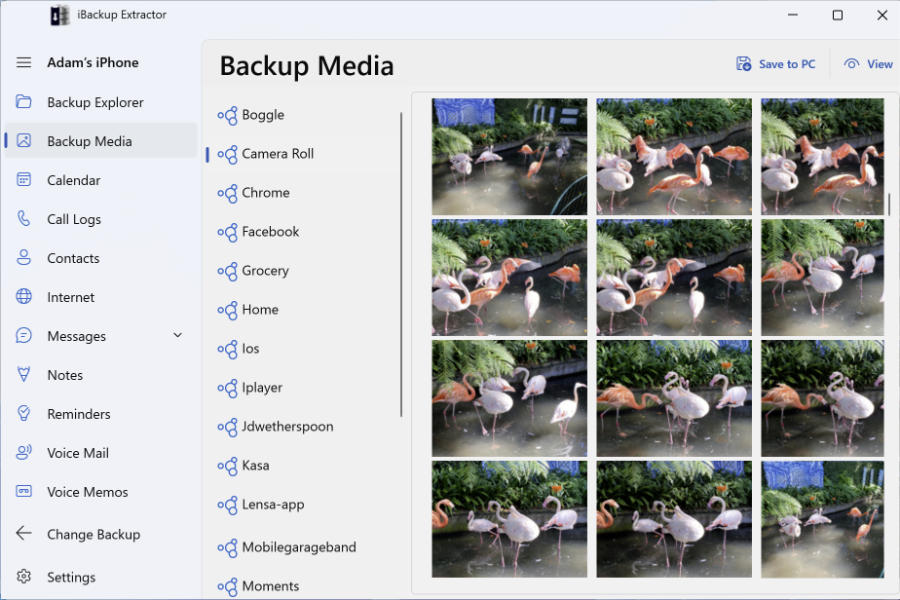
So if you want to extract content like photos, messages, contacts and more from your backup, simply download iBackup Extractor on your PC or Mac! Here's how it works...
- Launch iBackup Extractor on your PC or Mac.
- Select the device backup you want to access.
- Browse your content via the sections (Photos, Messages, Contacts, etc.).
- Select the content you want to copy from your backup.
- Save your selected files to your computer.



Popular FAQs
- How to Activate iBackup Extractor
- My iBackup Extractor activation code does not work
- Where are iPhone Backups Stored on Windows and Mac Computers
- Forgot Your iPhone Backup Password? Here's How to Reset It
- How to Remove Encryption from iPhone, iPad or iPod Touch Backups
- Does iBackup Extractor Read Encrypted Backups?
- How to View and Access iPhone Backup Files
- Can I Recover Data from a Lost iPhone?
- How to Retrieve WhatsApp Messages from iPhone Backup
- How to Give iBackup Extractor Access to iPhone Backups on Mac
- How to View and Recover Deleted Call History on iPhone
- Can iBackup Extractor Retrieve Voicemails from my iPhone Backup?
- How to Retrieve Deleted Contacts on iPhone
- Will iBackup Extractor Read the Contents of a Backup made to iCloud?
- How to Deactivate Your Software License Before Transferring to a New Computer
- iBackup Extractor vs. TouchCopy