Droid Transfer lets you copy files between your computer and your Android phone wirelessly or via USB!
Having trouble? Jump to troubleshooting.
Did you know? Droid Transfer also lets you copy files from your PC to your Android phone, as well as Manage and Delete files on Android as detailed in the Droid Transfer User Guide.
Run Droid Transfer on your PC and connect to your Android Device running Transfer Companion as described in our Setup Guide.
In Droid Transfer, click the "Files" icon - Droid Transfer shows the files and folders on your Android device.
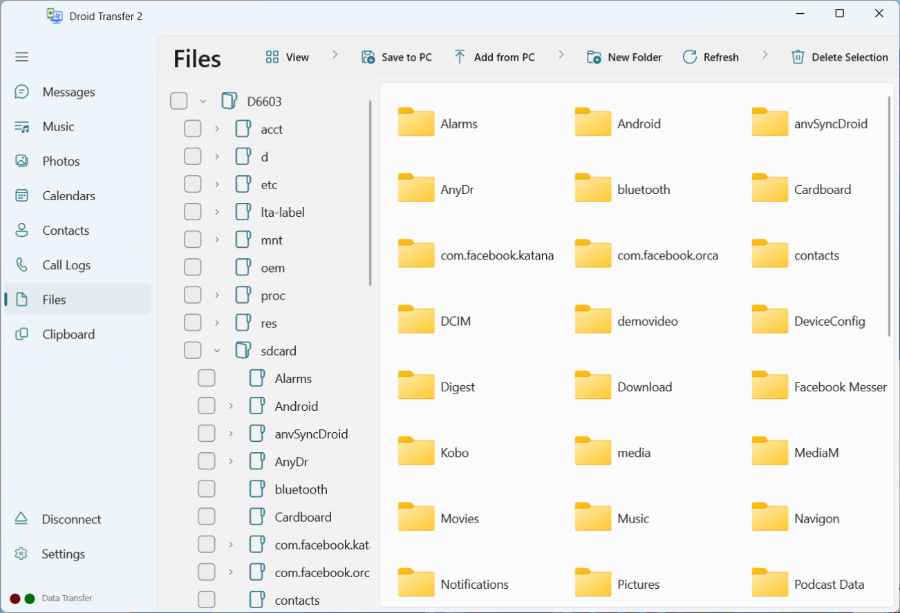
Using this file browser, you can view, copy, delete or add files to and from your Android device just like you would in Windows Explorer on your PC.
For example, let's say you want to copy a sticker that you sent on WhatsApp to your PC. To do this, simply navigate to the WhatsApp Stickers folder on your Android device.
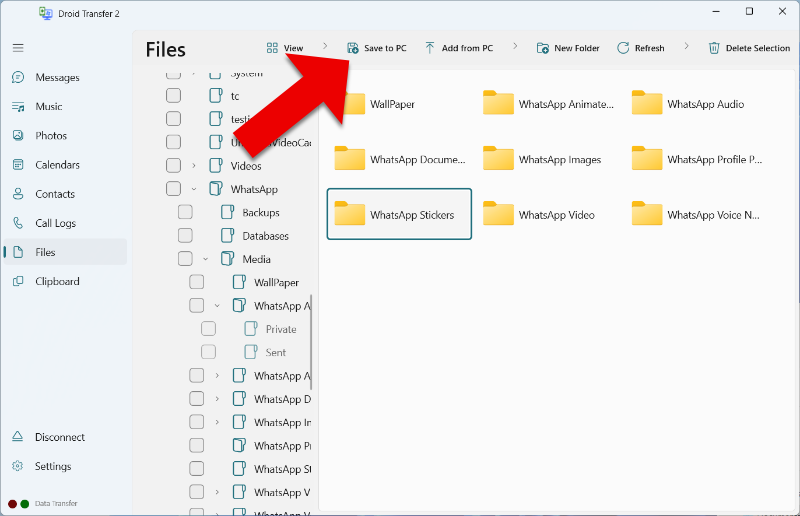
Select the item you want to copy. For this example, I have selected the "WhatsApp Stickers" folder and click "Save to PC".
Finally, choose where on your PC you would like to save a copy of the folder then click OK.
Droid Transfer will save a copy of the selected folder or file in your chosen location on your PC.
You can now access these files on your PC whenever you like!
If you're having issues with viewing or copying your Android device files to your PC, please check that Transfer Companion App has permissions to access Storage on your Android device.
If you can't find a particular file or folder, it may be set to hidden on your Android. To access such files, go to Settings > Files in Droid Transfer, and tick "Show hidden files and folders".
Tips on getting a stable connection between your phone and your PC can be found here:

 Droid Transfer 2
Transfer and manage your Android device media from your Windows PC.
Learn more Download