
Fix: “A text attachment was shared” appearing instead of messages in Droid Transfer exports
Why am I seeing "A text attachment was shared" in my export?
If your exported conversation shows “A text attachment was shared” instead of message content, it means Droid Transfer was unable to fully retrieve those messages from your Android device.
The most common cause for this is an interrupted connection while messages are loading or exporting. This can especially occur with large conversations.

How to resolve "A text attachment was shared" message in Droid Transfer
1. Export messages in smaller sections using “Filter Dates”
Large conversations, especially those covering several months or years and containing lots of media, can take longer to load and export. This increases the chance of the connection being interrupted.
- Open Droid Transfer and connect your device.
- Click "Messages" and then "Filter Dates".
- Choose a smaller date range, which will include a portion of your desired conversation.
- Click "Apply".
- Select the conversation you want to export.
- Export the filtered section of your conversation.
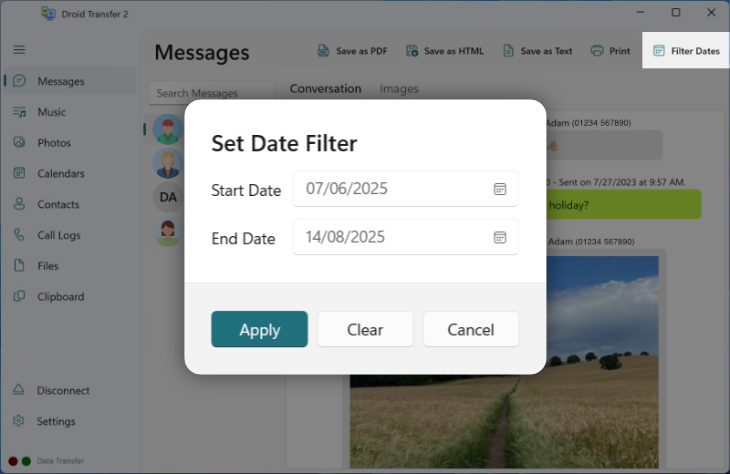
If successful, you can repeat this process by filtering dates for other ranges until you have exported all the messages you need.
Exporting in smaller sections reduces load time, improves reliability, and helps prevent messages from being replaced with “A text attachment was shared”.
2. Use a USB connection instead of Wi-Fi
Wi-Fi connections are more likely to drop during long exports. For the most stable connection, connect your Android device to your PC using a USB cable.
There are a couple of settings you'll need to adjust on your Android to make a USB connection. However, once set up, you can can easily connect via USB whenever you want.
Being a physical connection with fewer external factors, USB is usually faster and more reliable than Wi-Fi, especially when exporting large conversations.
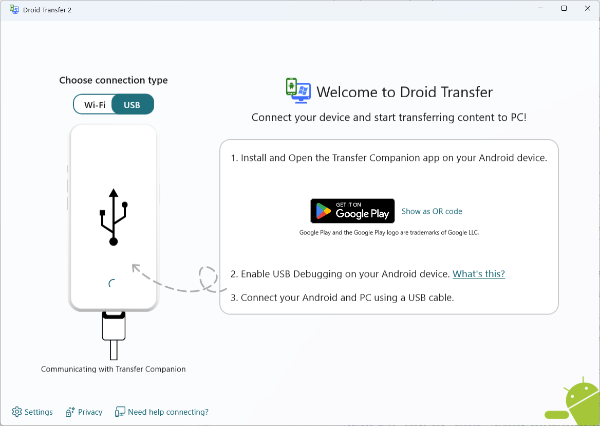
3. Keep your device connected and Transfer Companion open
While using Droid Transfer, make sure the connection remains active and uninterrupted by following these recommendations:
- Do not unplug the USB cable.
- Keep the Transfer Companion app open and visible on your phone.
- Do not switch to another app during the export.
- Avoid locking your phone while the export is running.
- Make sure the USB cable is firmly connected at both ends.
Keeping the app in the foreground ensures that your Android device does not close the connection during the export.
Additional checks
If the issue continues when specifically attempting to save a large conversation as PDF, try saving your text messages as HTML instead.
If you're able to successfully export as HTML, open the exported file in your web browser, press Ctrl + P, and choose Save as PDF as the destination.
This will result in a properly formatted PDF file containing all your messages.

 Droid Transfer 2
Transfer and manage your Android device media from your Windows PC.
Learn more Download