Moving from iPhone to Android should be simple, but when it comes to transferring messages, the conflicting instructions can be overwhelming.
Between Smart Switch, Android Switch, iCloud, backup and restore, cable connections, and wireless options, it's not always clear which method will actually transfer your messages—and which won't.
In this guide, we'll clear up the confusion and show you the safest and most reliable way to transfer messages from iPhone to Android, while helping you protect important conversations before you make the switch.
Quick jump to:
Stage 1: Backing Up Your Messages to a PC or Mac
Before you begin, make sure that your messages are backed up in case any of the media attachments and chat contents get lost during the transfer.
Also, as Android does not support iMessages, your iMessages will be converted to regular SMS/MMS during the transfer. This means that rich iOS features like inline replies, message reactions, and other dynamic content can be lost in transfer.
To retain your complete iPhone conversations with all media, formatting and attachments, you can export them to your computer first with TouchCopy.
How to Export iPhone Messages to Your Computer
- Install and launch TouchCopy on your PC or Mac.
- Connect your iPhone using a USB cable (or via Wi-Fi if your devices are on the same local network).
- Click on the Messages tab. (Note: If you don't already have a backup of your iPhone, TouchCopy will make one for you.)
- Browse and select the conversations you want to export. TouchCopy supports iMessages, SMS, MMS, RCS, WhatsApp and LINE chats.
- Click Save as PDF or Save as HTML from the top toolbar to save the conversations directly to your computer.
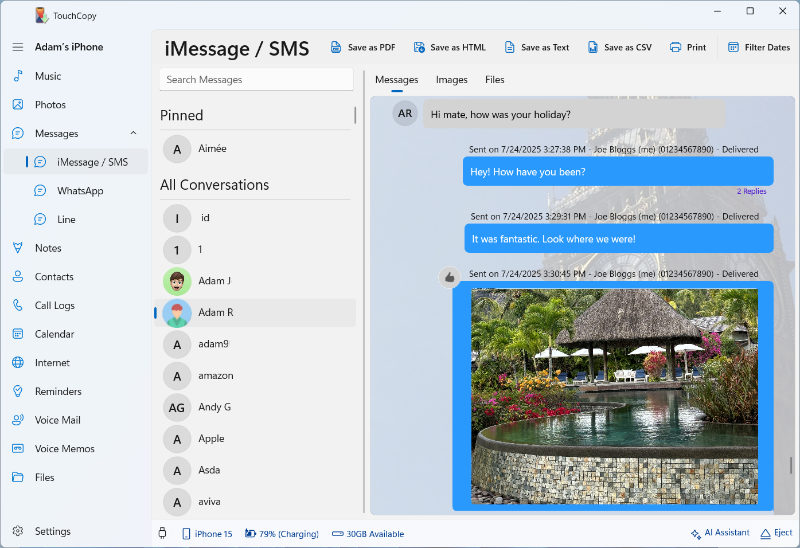


PDF exports preserve the familiar chat-bubble layout while including important details such as dates, times, contact information, images, emojis, reactions, inline replies, and delivery status.
If you wish to export dynamic content like videos and audio messages as well, choose to save as HTML. This creates an interactive offline webpage of your chats. You can even selectively save media and files from your iPhone messages.
Keeping copies of your texts creates a permanent archive on your computer that can be viewed, searched, shared, or printed at any time.
Tip: Don't leave your other data behind
iPhone Voice Mails and Call History aren't usually included in the transfer when setting up your new Android device. So, before erasing your iPhone, save your voicemails, back up your call logs, and any other data you need using TouchCopy.
Stage 2: Transferring Messages from iPhone to Android
Not all transfer methods support messages (e.g. Wi-Fi or iCloud syncing). This is because Apple stores your text databases in an encrypted format that Android cannot read over the air. If you want to move your text messages from iPhone to Android, use a cable connection between your devices. This provides the most complete and reliable transfer.
What cable do I need?
The cable required varies depending on the devices you have. You'll likely need either a USB-C-to-USB-C or Lightning-to-USB-C cable. If you don't have the correct cable, there are adapters available for purchase.
Before you start, ensure that both your iPhone and Android are fully charged, and that your iPhone is connected to Wi-Fi.
Method A: Transfer During New Device Setup
Regardless of whether your new device is a Samsung, Pixel or other make, the setup steps are very similar. You don't need to install or use an app when transferring during setup.
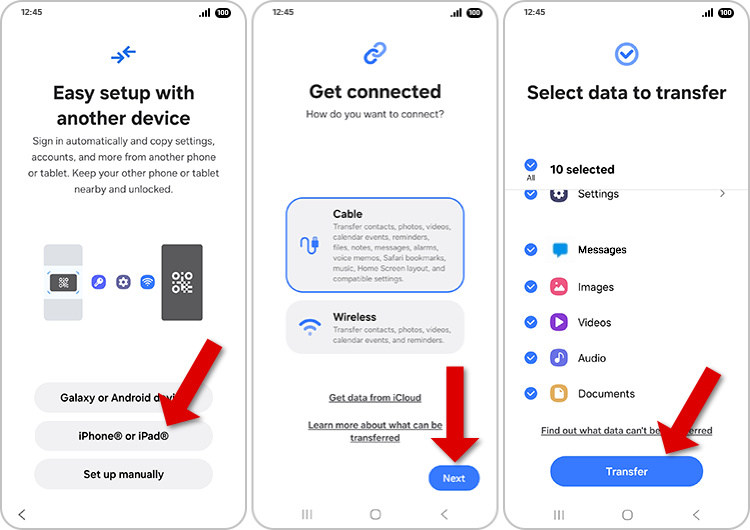
- Turn on your new Android device and start the setup process.
- Choose to set up your device with an iPhone.
- Follow the steps to connect to your Wi-Fi network and sign into your Google account.
Important: If you don't sign in, certain data like apps, calendars, notes and WhatsApp will not be transferred. - Connect your Android device to your old iPhone using your cable.
When prompted, tap “Trust” on your iPhone. - Select Messages and any other data types you want to migrate, then tap “Transfer / Copy”.
Ensure your devices remain connected via cable during this process. - You may see additional on-screen steps if you choose to transfer your WhatsApp messages.
- When the transfer completes, you'll be prompted to turn off iMessage. This is important because it prevents messages from other iPhone users from being sent to your old iMessage account instead of arriving on your new Android phone.
Need to transfer more than just messages?
Check out our other guide if you also want to transfer other data from iPhone to Android, including photos, videos, music, contacts and calendars. You'll learn how to selectively transfer the content you need, rather than moving everything from your old device.
Method B: Transfer Messages After Setup
If you've already set up your new Android device and you don't want to reset it, you can still transfer your iPhone messages.
To do this, you'll need to use your device manufacturer's transfer app. If it's not preinstalled, you can download it free from the Google Play Store.
- Samsung Smart Switch can transfer data to Samsung Galaxy devices.
- Android Switch can transfer data to Google Pixel phones.
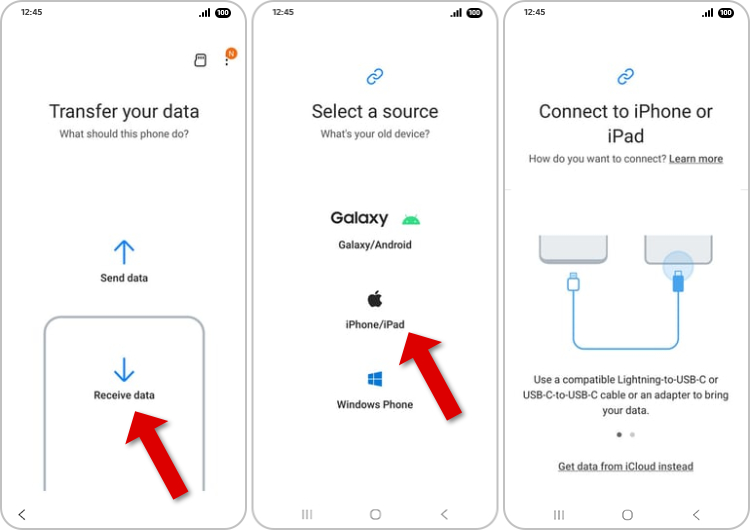
The process can vary slightly between the different apps, but the logic is the same. Here's how to move iPhone messages to a Samsung Galaxy after setup with Smart Switch:
- Launch Smart Switch on your Samsung phone.
- Tap “Receive Data” and choose “iPhone/iPad”.
- Connect your device using your cable, and adaptor if required.
Tap “Trust” on your iPhone when prompted. - Select Messages and any other data types you want to copy, then tap “Transfer”.
- When the transfer is complete, tap “Done”.
Read on to find out how to disable iMessage on your iPhone to ensure your new Android device receives messages.
Critical Post-Transfer Check: Disabling iMessage
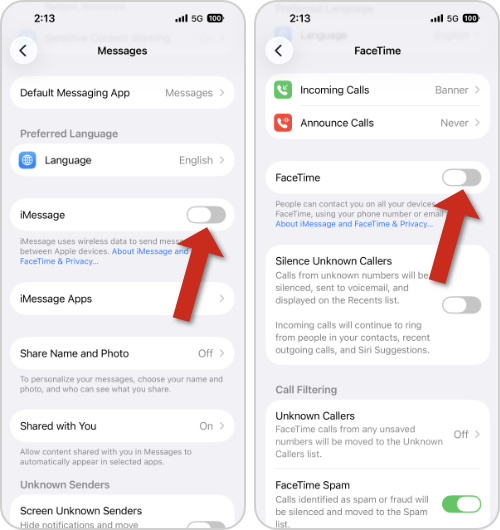
Before you remove the SIM card from your iPhone, it's vital to disable iMessage and FaceTime features. This ensures that any future messages and calls from iPhones are correctly delivered to your new device.
Otherwise, future messages from iOS devices will still be routed to your old iMessage account, and as Android does not support the iMessage format, they'll be lost. So, if you've already made the switch, and your Android is not receiving texts, this is likely the cause.
How to turn off iMessage and FaceTime on iPhone
- Go to Settings > Apps > Messages.
(On iOS 17 or earlier, go to Settings > Messages instead.) - Toggle “iMessage” off.
- Go back to Settings and select Apps > FaceTime.
- Turn off “FaceTime”.
If you no longer have your iPhone, don't worry. You can instead use Apple's online iMessage deregistration service.
Next Steps: Getting Your iPhone Ready for Sale or Trade-in
Once you've saved your important content to your computer, transferred it to your new phone, and disabled iMessage, you're almost ready to say goodbye to your iPhone.
The last checks are:
- Unpair your Apple Watch, if you have one.
- Sign out of iCloud and the App Store.
- Erase your iPhone. Settings > General > Transfer or Reset [device] > Erase All Content and Settings.
Important Security Check Before You Erase: Before tapping "Erase All Content and Settings," open your PC or Mac and verify that your messages exports created by TouchCopy open correctly and show all your conversations. Once you wipe your iPhone, any data that didn't transfer over to your Android device will be permanently lost.
For more info, see Apple's full checklist of what to do when getting rid of your iPhone.
Key Takeaways
Transferring messages from iPhone to Android is usually straightforward, as long as you follow these 3 key steps:
- Use a cable connection and carefully follow the setup process.
- Don't forget to back up your iPhone and export any important conversations you want to keep permanently.
- Remember to disable iMessage and FaceTime to ensure new messages are delivered correctly to your Android device.
By taking these simple precautions, you can confidently and safely switch platforms and start where you left off on your shiny new Android phone!
Troubleshooting & FAQs
What do I do if not all my messages were transferred?
Ensure you're using a cable connection rather than Wi-Fi, as Wi-Fi does not support message transfers. Also, check that "Messages" is selected to copy during the setup. If the copy was interrupted, try running it again with both devices fully charged and connected to a stable Wi-Fi network.
Is WhatsApp transferred from iPhone to Android?
Yes, but it can only be done during the initial device setup. Many Android manufacturers support WhatsApp transfers from iPhone, including Samsung and Google devices. However, the process may require additional setup steps during device migration.
If you've already set up your new phone and don't want to reset it, you can export WhatsApp chats from iPhone to your computer with TouchCopy.
What if photos in my messages aren't transferred?
If photos are missing from your transferred messages, they may be stored in iCloud rather than on your iPhone. Check that your device has fully downloaded all message data before copying, by disabling iCloud for Messages. Once your content has been downloaded to the device, rerun the transfer using a cable connection.
Can I transfer messages after I've already set up my Android phone?
For regular messages, yes. Many transfer tools work best during the initial setup process, and some data types (like WhatsApp) can only be migrated at that stage. However, apps like Samsung Smart Switch can transfer standard messages after setup without requiring you to reset your device.

Want more tech tips like this?
Add us as a Preferred Source on Google.