
How to Edit, Add and Delete iPhone Contacts on PC using Contact Transfer
Introduction
Contact Transfer provides all the tools you need to effectively manage your iPhone's contacts, from the comfort of your PC.
Not only can you transfer contacts from device to device (iPhone to iPhone, Android to Android, or between the two platforms), but you can also create new contacts, update your existing contacts, and delete contacts in bulk!

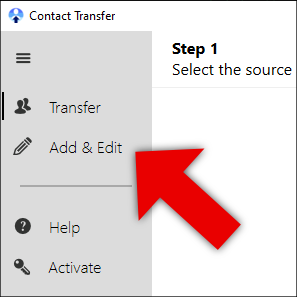
To manage your iPhone contacts, open Contact Transfer on your PC and click the "Add & Edit" option in the feature bar on the left of the program. If your menu is minimized, this feature will be displayed with a "pencil" icon.
Choose the "iOS Device" option, since you want to manage contacts on your iPhone, then click Continue.
Now you can connect your iPhone with Contact Transfer using a USB cable.
What can I do to manage my contacts using Contact Transfer?
Create new contacts
Adding new contacts to your iPhone, iPod or iPad has never been easier. Follow the steps below to create a new contact, fill in the contact's details and save the entry directly on your iPhone.
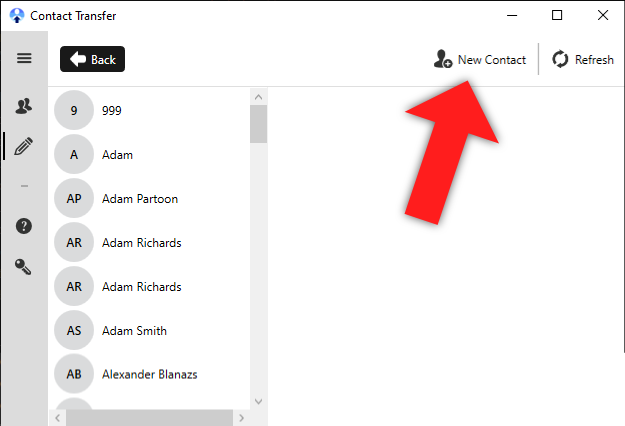
- Click the "New Contact" button in the top-right corner of Contact Transfer.
- Complete the form to populate your new contact's details. You can use the "+" icon to add new entries for information like phone numbers and addresses.
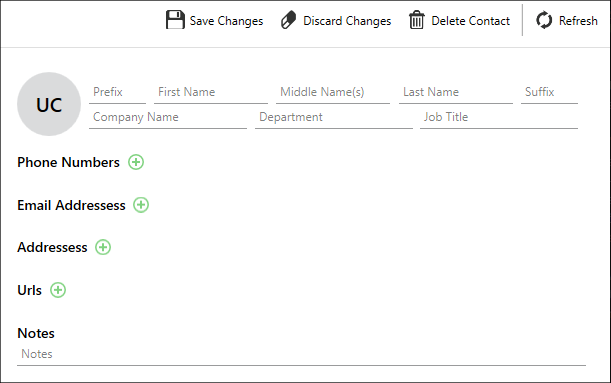
- To save your new information, click "Save Changes". This will add the new contact to your device!
You can now find your new contact in the Contacts app on your iPhone!
Clicking "Discard Changes" will cancel the creation of the contact, and any unsaved details will be lost.
Edit contacts
Editing your existing iPhone contacts in Contact Transfer follows a similar procedure to creating new ones. Here's how it's done...
- Click a contact from the list to select them in Contact Transfer and view their details.
- Edit any items in the form by clicking them and updating the information. To add new fields for multiple addresses and telephone numbers, click the "+" icon next to the corresponding field. Clicking the "-" icon will delete the field.
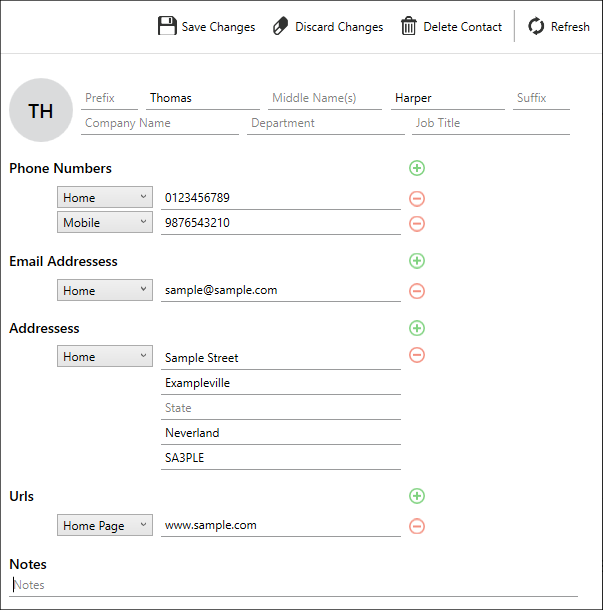
- Once you have completed your desired updates to the chosen contact, click "Save Changes". This will save the changes and update the contact on your iPhone itself.
Clicking "Discard Changes" will revert the contact to its state before you started editing, and any unsaved changes will be lost.
Delete contacts
Deleting multiple contacts on iPhone is not an obvious feature. It can also take vast amounts of time to review each contact individually and delete them.
With Contact Transfer, however, you can easily review and select multiple contacts in bulk for deletion.
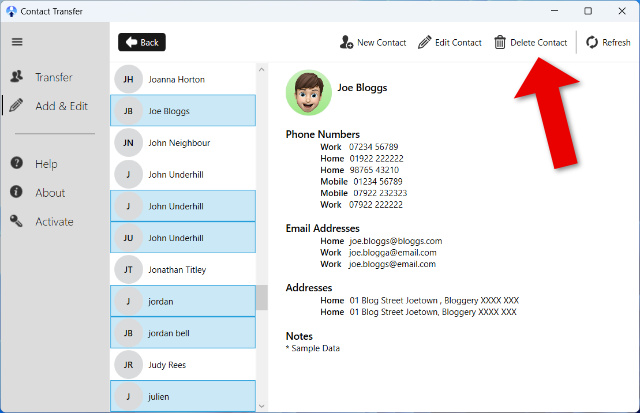
To delete a single contact, select it from your list, then click "Delete Contact".
To delete all contacts from your connected device, click a contact from your list, then use Ctrl+A on your keyboard. This will highlight all contacts in the list. Click "Delete Contact" if you are sure that you want to delete all contacts from your device.
To delete multiple contacts, hold Ctrl on your keyboard while selecting more than one contact, then click "Delete Contact" when you are happy with your selection.

 Contact Transfer
Easily transfer contacts between iPhone, Android and Windows PC.
Learn more DownloadPopular FAQs
- How to Activate your Contact Transfer License
- How to Connect with Contact Transfer (iPhone or Android)
- Connecting an iPhone with Contact Transfer | Troubleshooting
- Connecting an Android with Contact Transfer | Troubleshooting
- Android Contact Manager: Edit, Add and Delete Android Contacts on PC
- No Content on iOS in Contact Transfer - How to Transfer Contacts from iCloud to iPhone
- How to Delete Multiple Contacts on iPhone
- Is Contact Transfer safe? What data is shared by the app?