
How to Set Up Messages on Mac (& Sync Your iPhone Messages)
Missing messages on your Mac? If you've just set up a new Mac and the Messages app is empty, or not showing your full message history, you're not alone.
Many users expect their iPhone messages to automatically appear on their Mac. But in reality, this only happens if your Messages and iCloud settings are configured correctly.
In this guide, we'll show you:
Why Are My Messages Missing on Mac?
When you first sign into the Messages app on a Mac, it will be empty. New messages you send and receive from that point forward will show up, but not your full message history.
To access all your historical chats, you'll need to enable "Messages in iCloud" on both your iPhone and Mac.
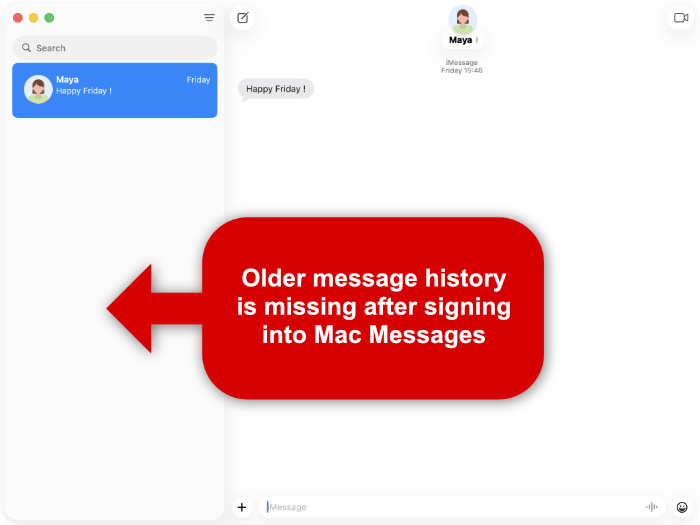
How to Set Up iMessage on Mac
Before syncing, ensure the Messages app is properly set up on your Mac. You need to be signed in to start using iMessage on Mac.
-
Open the Messages App
Open the Messages app from your Applications folder, Dock, Launchpad, or by searching using Spotlight. -
Sign in to Your Apple Account
Sign in using the same Apple Account that you use on your iPhone (and other Apple devices).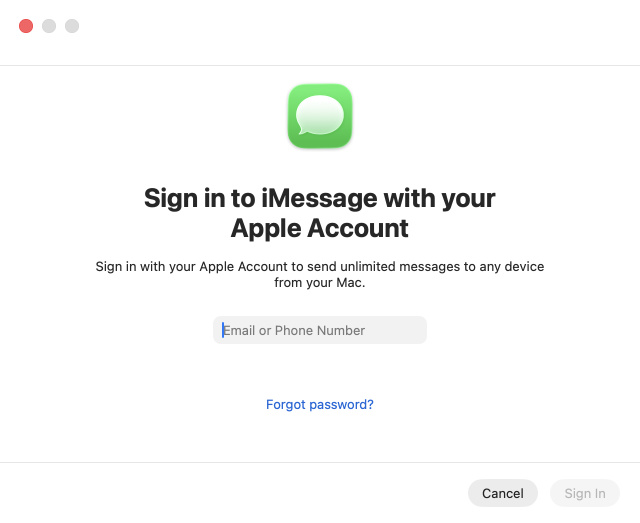
-
Check Your iMessage Settings
Click Messages in the menu bar, select Settings, then open the iMessage tab.- Make sure your phone number and email address are selected under "You can be reached for messages at".
- Ensure that your preferred number is selected under "Start new conversations from".
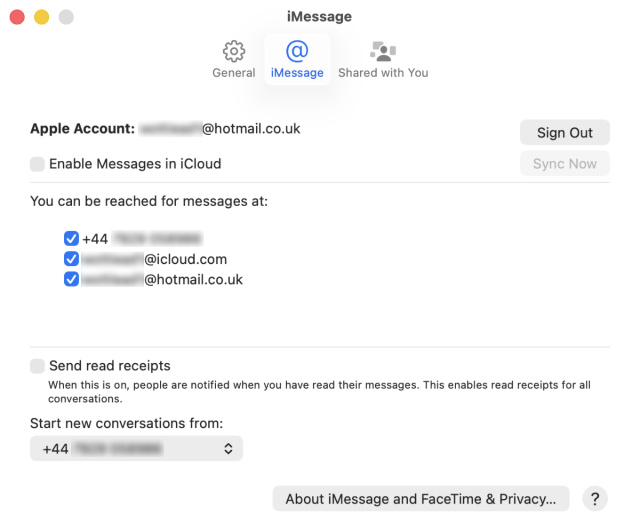
This ensures your Mac can send and receive messages correctly.
How to Sync iPhone Messages to Mac
To access all your existing iPhone messages on your Mac, you need to enable "Messages in iCloud" on both devices. This ensures your messages are stored in iCloud and kept in sync across all your devices, allowing your Mac to download your full message history.
Expert Tip: Before syncing, ensure that you back up your iPhone. This way, if anything goes wrong during syncing, you won't lose any messages.
-
Enable iCloud Messages on your iPhone
Open Settings, tap your Apple Account name, then go to iCloud > Messages in iCloud and turn on "Use on this iPhone".
This uploads your messages to iCloud.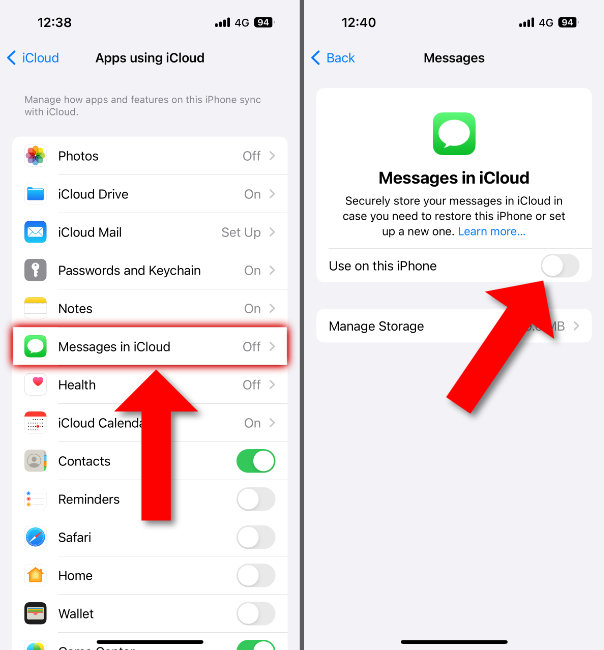
-
Enable iCloud Messages on your Mac
Open Messages, click Messages in the menu bar, then select Settings. Go to the iMessage tab and enable "Messages in iCloud".
Your Mac will now download your messages from iCloud.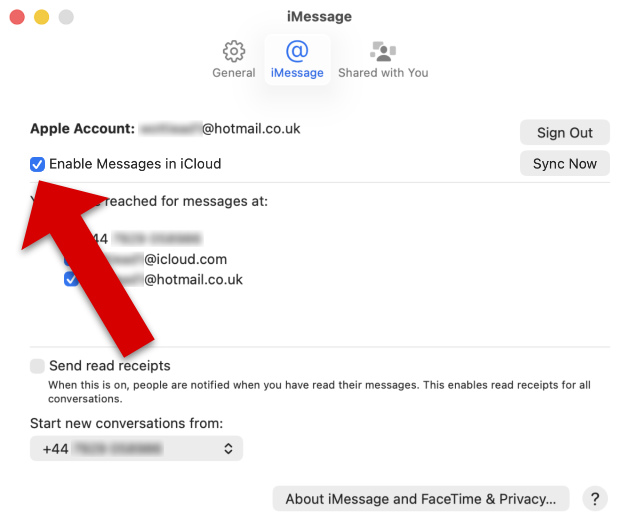
-
Wait for your messages to sync
If you have a large message history, it may take some time for older conversations to appear.
Expert Tip - For best results:
- Keep your Mac connected to Wi-Fi and power.
- Leave the Messages app open while syncing.
- Make sure your iPhone is also connected to Wi-Fi.
Once syncing is complete, your Mac will display your full message history from your iPhone.
If it's been a long time, but your message history has not started appearing on your Mac, skip to Troubleshooting. You can also refer to Apple's official guide to syncing Messages with iCloud.
Otherwise, read on to find out how to export your Mac message history as PDF, CSV or TXT.
Can I Export My Messages Once They Are on My Mac?
Yes. Once your messages are synced to your Mac, you can save or export them in a variety of formats with Messages Export Pro.
This helpful app allows you to export messages from your Mac to PDF, CSV or TXT. It's ideal if you need to keep records, archive conversations, or share message documents outside the Messages app.
Simply select the conversation you want to export and choose your preferred format. Your messages will be saved locally on your Mac, so no information is shared with any third parties - ensuring your privacy.
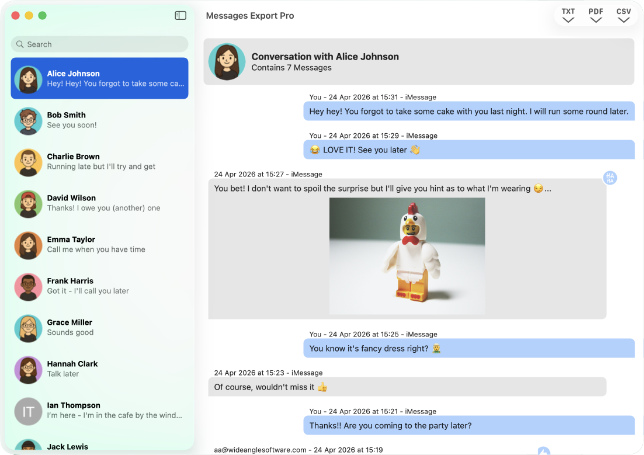
Before exporting, make sure your messages have fully synced to your Mac so that the conversations you need are available.
To export your messages from your Mac, download Messages Export Pro free from the Mac App Store:

Exporting as TXT and saving message attachments are completely free, whereas PDF and CSV exports are unlocked with a one-time purchase.
Troubleshooting: What If Messages Still Are Not Syncing?
If your iPhone messages are still not appearing on your Mac, check the following settings.
- Make sure you are using the same Apple Account
Your iPhone and Mac must be signed in to the same Apple Account for Messages in iCloud to sync correctly. - Check that Messages in iCloud is enabled on both devices
Messages in iCloud must be enabled on both your iPhone and your Mac. - Check your internet connection
Message syncing requires a stable internet connection. - Check your iCloud storage
If your iCloud storage is full, your messages may not sync properly. - Restart your devices
If syncing appears to be stuck, restart both your iPhone and your Mac.
Expert Tip: If you'd prefer not to use iCloud syncing, you can export messages directly from your iPhone to your computer using TouchCopy.
This app is perfect if your devices are signed in to different Apple Accounts, if you don't use a Mac, or if you want to transfer messages without syncing.
TouchCopy works on Windows and Mac, and supports iPhone, iPad, and iPod.
Summary
Now you know how to set up the Messages app on your Mac and ensure you have access to your full message history.
By enabling Messages in iCloud on both your iPhone and Mac, you can sync all your messages across devices and access them in the Messages app on your Mac.
While you're syncing your messages, whenever you make changes like deleting messages on one device, those changes will be reflected across all your devices with Messages in iCloud enabled.
If you need to save or archive your conversations, you can use the Messages Export Pro app to export messages directly from your Mac. It's ideal for producing professional documentation of your conversations for legal or business purposes, as well as personal records.

 Messages Export Pro
Export your Mac Messages to PDF, CSV or TXT - no iPhone needed.
Learn more Download