When you back up your iPhone using iTunes, Finder, or the Apple Devices app, the backup includes messages sent and received up to that point, helping protect them from accidental deletion, device damage, or loss.
While these backups contain your text message history for the purpose of restoring your iPhone, they do not offer direct access to individual messages. To view and extract SMS, MMS, RCS, iMessage, WhatsApp, or LINE conversations from a backup, you can use iBackup Extractor.
Quick Start Guide: How to Export Text Messages from Your iPhone Backup
Download, install and open iBackup Extractor.
Select a backup from the available iOS device backups.
Click the Messages feature.
Select the conversations you want to export.
Click Save or Copy and choose your preferred export format.
When you launch iBackup Extractor, it displays the iOS device backups created on your computer by iTunes, Finder, or the Apple Devices app. This lets you explore backups of previously connected devices without needing the physical iPhone, which is especially useful if your device has been lost or stolen.
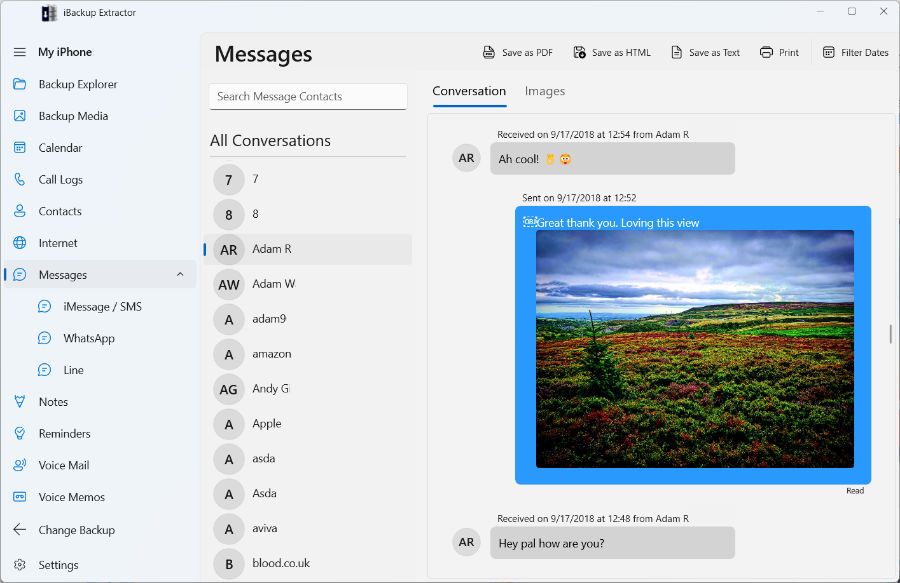
Open the Messages feature to see the contacts and groups included in the selected backup. Choose a contact or group to view the SMS, MMS, RCS, iMessages, WhatsApp, or LINE messages sent and received in that conversation.
To export messages from a specific period, use the date filtering feature. On Windows, click Filter Dates. On Mac, select Set Date Range. You can then view and export only the messages exchanged within your chosen timeframe.
Extract WhatsApp Messages from a Backup
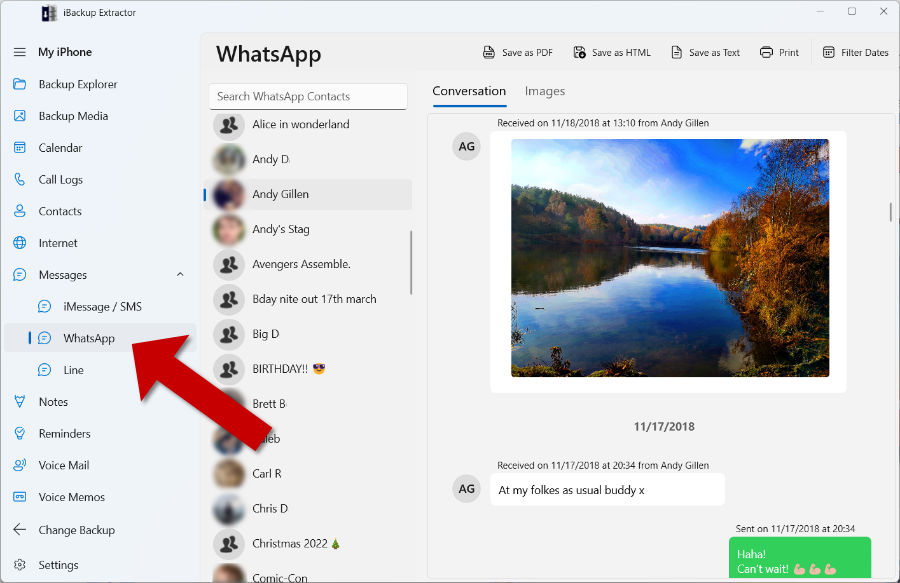
If your backup contains WhatsApp conversations, they appear under the WhatsApp header in the Messages tab. Select a contact to open the conversation, then save it to your computer or print it.
Message Export Options
Once a conversation is displayed, click Save or Copy and choose your preferred export format. To export multiple conversations at once, hold Ctrl on Windows or Cmd on Mac while selecting them.
PDF: Saves the selected conversation as PDF, including all attached images in the same file. This option is great for sharing.
HTML: Saves the conversation as an HTML file. You can view HTML files in internet browsers like Microsoft Edge, Google Chrome and Safari. In iBackup Extractor Settings, you can choose to embed images or save them into a separate folder.
Text: Saves the conversation as Plain Text. This format will not save attached media like images, nor will it be styled with coloured message bubbles.
How to Print Messages from an iPhone Backup
To print messages from an iPhone backup, simply select the desired conversations in iBackup Extractor and click Print in the toolbar. Your computer's default print settings will appear. Adjust the settings as needed, and when ready, click Print. iBackup Extractor will print the complete conversation details, including sent and received messages, attached media (such as emojis, photos, and reactions), contact information, as well as timestamps for each message.
We use cookies to provide you the best experience on our website. To find out more, read our cookie policy. You may decline non-essential cookies if you prefer.
We use cookies to track usage and optimize your experience.