How to Back Up and Export Notes from Your iPhone
Your iPhone Notes often contain important reminders, ideas, and personal information you don’t want to lose. With TouchCopy, you can easily back them up to your computer.
This guide will walk you through how to view, search, export, and print your notes in various formats, including PDF, HTML, and TXT.
Export iPhone Notes With Attached Media
Step 1: Download and install TouchCopy on your PC or Mac.
Step 2: Launch TouchCopy and connect your iPhone using a USB cable or Wi-Fi.
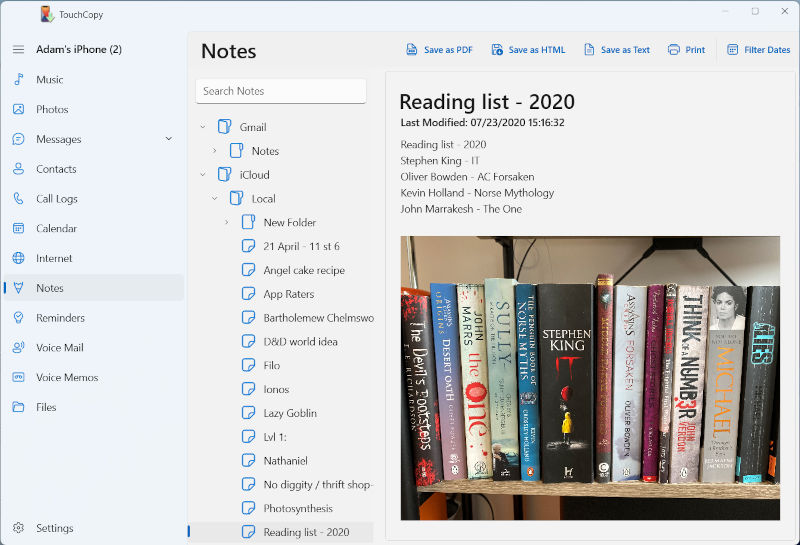
Step 3: Click the "Notes" section in TouchCopy to view notes on your iPhone via your computer.
Step 4: Select an iPhone note or a folder of notes you wish to back up.
Step 5: To export your Notes with attached media click "Save as HTML" or "Copy to Mac" and select a location on your computer to save the files.
TouchCopy will export your selected notes along with any attachments including images, videos, sketches, checklists, and call recordings.
You also have an option to export your notes to Plain text or PDF files as detailed in the Export Formats section of this guide.
Browsing and Searching Notes in TouchCopy
TouchCopy can show a list of all notes stored on your connected device. Click a note to select it and preview its contents in TouchCopy.
Search Notes: To find a specific note, click the Search bar at the top of TouchCopy and enter some text. Any notes which do not contain your search query will be filtered out of the list.
Filter Dates: If you wish to filter your notes by date, you can use the "Filter Dates" (PC) or "Date Range" (Mac) button. Here you can set a range of dates which will instruct TouchCopy to only show notes created between those dates.
 Accessing Locked Notes: Note that TouchCopy cannot access notes that are locked and password-protected on your device. To make a locked note accessible, open it on your iPhone, tap the menu (three dots), and select "Remove Lock".
Export Formats for Your iPhone Notes
You can backup selected Note/Notes from your iOS device to your computer by choosing one of the 3 export formats available in TouchCopy.
- Save as HTML (PC) / Copy to Mac: Exports your selected notes as HTML files. These can be opened in your default web browser by double-clicking the saved file. Images and videos are embedded directly in the HTML, while audio attachments are saved in a separate folder.
- Save as PDF (PC) / Copy to PDF (Mac): Exports notes as PDF documents with embedded images. Please note that this format does not include video or audio attachments. PDF files will open in your default PDF viewer.
- Save as TXT (PC) / Copy to TXT (Mac): Saves your notes as plain text files. This format includes only the text content and does not retain any media such as images or audio.
Watch the video to see how to backup notes from iPhone to computer:
Printing Your Notes
To print notes, simply make a selection of notes that you would like to print, then hit the "Print" button in the TouchCopy Notes toolbar. This will bring up your computer's standard print settings. Once you're happy with the settings, hit print!
Recovering Deleted iPhone Notes
If you've accidentally deleted notes from your iPhone, you may still be able to recover them using our iBackup Extractor software. This tool allows you to retrieve deleted notes from your iTunes or Finder backups stored on your computer.
Publisher:
Wide Angle Software