What TouchCopy can do with your iPhone, iPod and iPad Contacts
If you're getting a new iPhone, and wish to transfer your contacts to it, or if you simply want to back up your contacts to your computer, TouchCopy can help.
If you have lots of contacts to manage, you may want to export your iPhone contacts as CSV so that you can organize them all in a Microsoft Excel spreadsheet. You can import contacts in batch to contact management programs like Microsoft Outlook or Google Contacts with such a CSV!
The software also allows you to save your contacts as individual vCards from your iOS device to your PC or Mac. vCards are great if you'd like to import your contacts into iCloud.
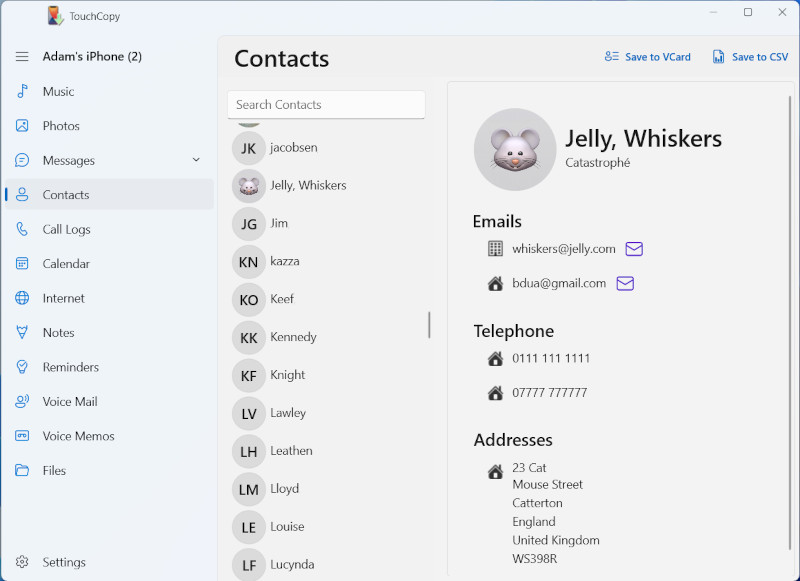
To view your iPhone, iPod or iPad contacts in TouchCopy, click "Contacts" in the TouchCopy feature list.
TouchCopy enables you to easily search through your list of contacts. You can sort your list either by first name or last name by using the "Sort Order" button on Mac, or using TouchCopy Settings on PC. You can also search for a specific contact by typing their name in the search box.
Export Contacts to Excel (saving as CSV format)
In TouchCopy, choose the Contacts feature from the list on the left. This will display all the contacts stored on your connected device.
How do I create a CSV file of contacts? If you'd like to organize all your iPhone contacts using a spreadsheet, you can do this by clicking the "Save to CSV" (PC) or "Copy to CSV" (Mac) button in TouchCopy. This will export all your selected contact information as a single CSV (Comma-Separated Values) file. You can then open this file in a spreadsheet management app such as Microsoft Excel or Mac Numbers app for easy viewing and handling. Check out our guide for more information on exporting iPhone contacts as CSV.
You can even import your contacts, via the CSV file, into other applications like Microsoft Outlook or Google Contacts, enabling you to sync them with other devices.
Export Contacts as vCard
TouchCopy has the ability to export your contacts from your iPod or iOS device into vCard format so that you can import your contacts into other programs. vCards are files that contain contact information about a person or company that can be understood by just about any Address Book or E-Mail program available. For example, vCards can be imported into Windows Contacts, Microsoft Outlook, Mac Contacts, etc. You can even import vCards into iCloud.
To copy your device contacts, select one or more from the list of contacts in TouchCopy and click the "Save to vCard" (PC) or "Copy to Mac" button. To select all Contacts at once, use the Ctrl+A (PC) or cmd+A (Mac) key combination. Then simply select the folder you want to save your vCards into. TouchCopy enables you to create a separate Contacts folder to save your contacts to.
See how to save iPhone contacts to computer with TouchCopy
Sync Contacts with a new device using iCloud
If you've saved your contacts as vCard, you can import them into iCloud (watch our video to see how, or read on for instructions).
This is great because it means that you can access your contacts on any device using your iCloud account.
On your computer, go to icloud.com and log into your account.
Select "Contacts" to access your iCloud contacts.
Click the + at the top of the window and choose "Import Contact...".
Find and select a vCard contact that you exported with TouchCopy, and then click Open to import it.
Importing Multiple Contacts: Using "Import Contact" only allows you to import a single VCard at a time. If you have multiple contacts to import, select all the vCard files you want to import and then drag them into the iCloud Contacts window.
Once you have all the contacts you need imported into iCloud, you can sync them with your devices.
To sync your iCloud contacts with an iPhone, iPad or iPod Touch, on the device, go to Settings > your name > iCloud. Find Contacts in the list of apps, and toggle it ON. If you already have contacts on the device, it will ask if you'd like to merge your contacts.
Sync Contacts with a new device using Google Contacts
If you've exported your contacts from TouchCopy as a CSV file, you can import them into Google Contacts (watch our video to see how, or read on for instructions)..
This is a great option if you use a Google account, as your contacts can then sync automatically with any device signed into that account, including your iPhone.
On your computer, go to contacts.google.com and sign in with your Google account.
Click "Import" from the menu on the left-hand side.
Click "Select file" and choose the CSV file that you exported from TouchCopy.
Click "Import" to upload your contacts to Google Contacts.
Once your contacts have been imported into Google Contacts, you can sync them with your iPhone.
On your iPhone, open "Settings".
Scroll down and tap "Apps" and then "Contacts".
Tap "Contacts Accounts".
Choose "Add Account" to add your Google account, or tap your account if you already have it listed.
Make sure "Contacts" is toggled ON for your Google account.
Your imported contacts will now sync to your iPhone automatically. Any future changes made in Google Contacts will also sync to your device.
Sync contacts with a new device using iTunes or Finder
Once you've copied your contacts as CSV using TouchCopy, you can use your email manager or your address book program to import these contacts.
To import contacts from CSV to Mac Contacts app, launch Contacts on Mac and go to File > Import. Here, select the CSV file containing your contacts and click Open. Next, review the information which will be imported and make any changes you wish (we recommend importing Name as "First Name", and Family Name as "Last Name"). Click OK to import your contacts.
You can then use iTunes (or Finder on macOS Catalina and higher) to sync Contacts you imported to Outlook or another address book program to another iOS device.
Connect your new iPhone, iPad or iPod to your computer using a USB cable or Wi-Fi.
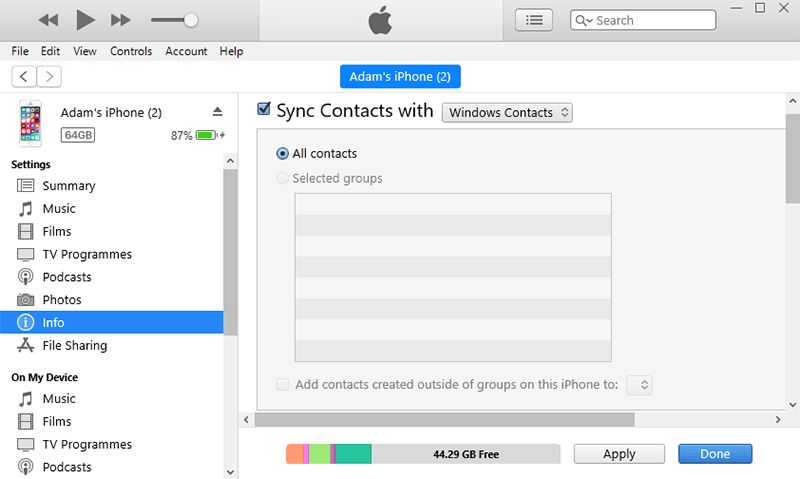
Open iTunes (or Finder if using macOS Catalina or higher) and select your device.
Select the "Info" tab and check "Sync Contacts...".
In iTunes, choose your address book program which contains the contacts saved by TouchCopy. In Finder optionally choose any groups that you've created.
Click the "Apply" or "Sync" button to initiate the sync.
Note that iCloud needs to be disabled for contact syncing with iTunes or Finder. From your new iPhone, go to "Settings" > Your username > "iCloud" and disable iCloud for the Contacts app.
Extra: You can easily copy contacts between iPhones, Androids and PC using our other program Contact Transfer. Contact Transfer can perform direct transfers between devices, without the need to export to computer and import to address books.
We use cookies to provide you the best experience on our website. To find out more, read our cookie policy. You may decline non-essential cookies if you prefer.
We use cookies to track usage and optimize your experience.
Contact Transfer
X
Easily transfer contacts between iPhone, Android and PC with the new Contact Transfer app.






 Contact Transfer