Detailed Descriptions of the steps can be found below.
What TouchCopy can do with your calendars
TouchCopy enables you to save your calendars from your device to your PC or Mac. The instructions below also provide details on how to transfer calendars copied by TouchCopy to another iOS device using iTunes or Finder.
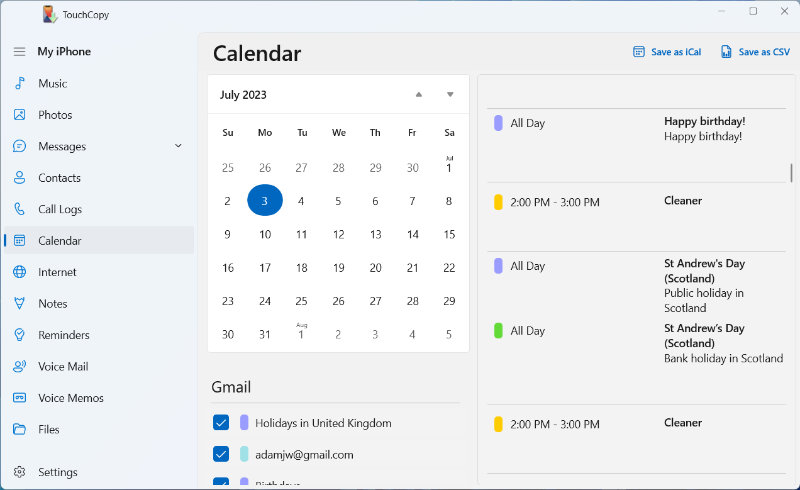
To view calendars in TouchCopy, click the "Calendars" icon in the category list.
TouchCopy will show all your device's calendars (iCloud, Gmail, Outlook, Scheduled Reminders, Subscribed, etc.) and events by default. You can uncheck a calendar in TouchCopy to deselect it and remove its events from the calendar preview in TouchCopy.
Navigate around your calendars and events in TouchCopy by using the calendar grid and navigational arrows to browse through days, weeks, months and years.
Copying your iPod and iOS device Calendars to your computer
In TouchCopy, click the Calendar feature from the list on the left. This will display the calendars stored on your device.
As all calendars on the device are checked by default, you can simply click the button to copy as iCal or CSV to save all calendars at once.
To copy individual calendars, uncheck any calendars you don't wish to copy before proceeding.
Export format options:
"Save as iCal" (PC) / "Copy to Mac". iCal is the standardized format for saving digital calendars.
"Save as CSV" (PC) / "Copy to CSV" (Mac). You can open CSV files in spreadsheet management apps like Microsoft Excel and Apple Numbers.
All important Calendar information will be saved to your iCal or CSV files, including event names, times, and dates.
If you wish, you can then import your iCal files to your Outlook or Calendar app, you can double-click an iCal file which will open your default calendar app on your computer. Outlook / Calendar will then prompt you to add this calendar to your existing calendar. For multiple files, in Outlook / Calendar app, go to File -> Import... and select all of your iCal files. You'll then import them into your existing calendar.
Importing saved iCal Calendars to another iOS device
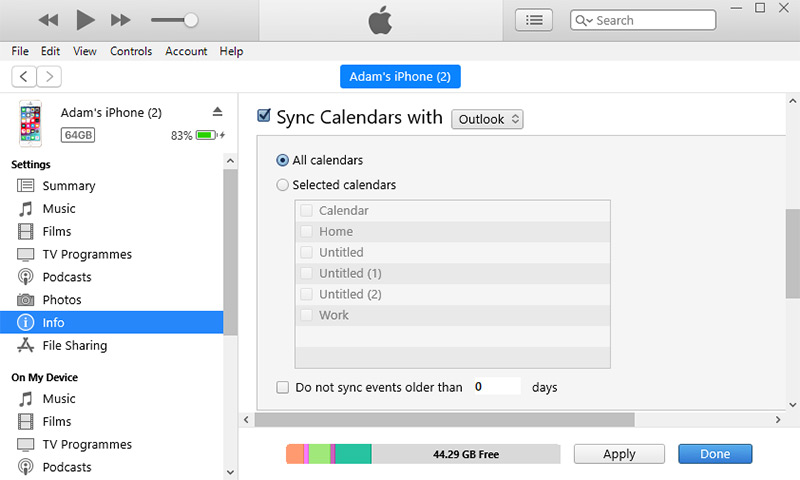
Once your Calendar/Outlook app has been populated with your iCal files, you can then use iTunes (or the Finder app on macOS Catalina or higher) to sync your calendars with another iOS device.
Connect your new iPhone, iPad or iPod to your computer using a USB cable.
Open iTunes (or Finder if using macOS Catalina or higher) and select your device.
Select the 'Info' tab and check "Sync Calendars...".
In iTunes, choose your address book program which contains the contacts saved by TouchCopy. In Finder optionally choose specific calendars if available.
Click the "Apply" or "Sync" button to initiate the sync.
Note that iCloud needs to be disabled for calendar syncing to work. On your new iPhone, go to "Settings" > Your username > "iCloud" and disable iCloud for the Calendars app.
We use cookies to provide you the best experience on our website. To find out more, read our cookie policy. You may decline non-essential cookies if you prefer.
We use cookies to track usage and optimize your experience.